How to Clean Up Cloud Storage Without Losing Important Files
Running out of cloud storage? Use this practical cleanup workflow to find large files, back up what matters, remove clutter safely, and avoid deleting something important.
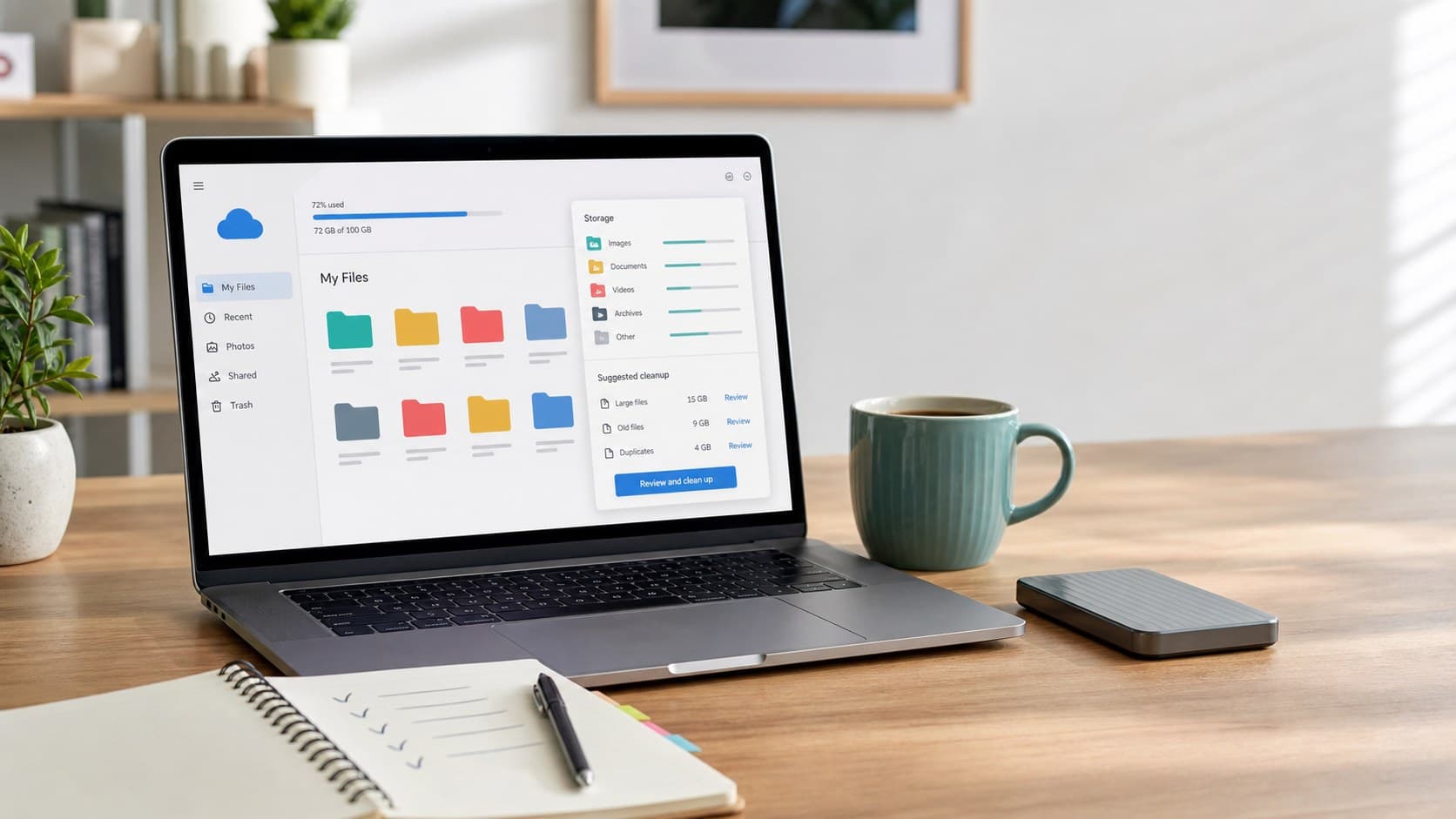
Is your cloud storage almost full, but you are nervous about deleting the wrong thing?
That warning can feel small at first. Then one day your photos stop syncing, Gmail complains about storage, or a shared work folder refuses to upload one more PDF. The fix is not to randomly delete files for 20 minutes and hope for the best. A safer cleanup starts with knowing what is actually taking space, backing up anything important, and deleting in the right order.
This guide gives you a practical way to clean up Google Drive, iCloud Drive, OneDrive, Dropbox, or any similar cloud storage account without accidentally removing files you still need.
Start With Storage, Not Folders
The mistake is opening your folders one by one and guessing what looks disposable. That takes too long, and it usually misses the biggest files.
Start with your cloud provider's storage view instead.
In Google Drive, open Storage and sort by file size. In OneDrive, check Manage Storage. In Dropbox, use the web app and sort large folders by size. In iCloud, review storage from your Apple ID settings or iCloud.com.
Your goal is simple: find the few items doing the most damage.
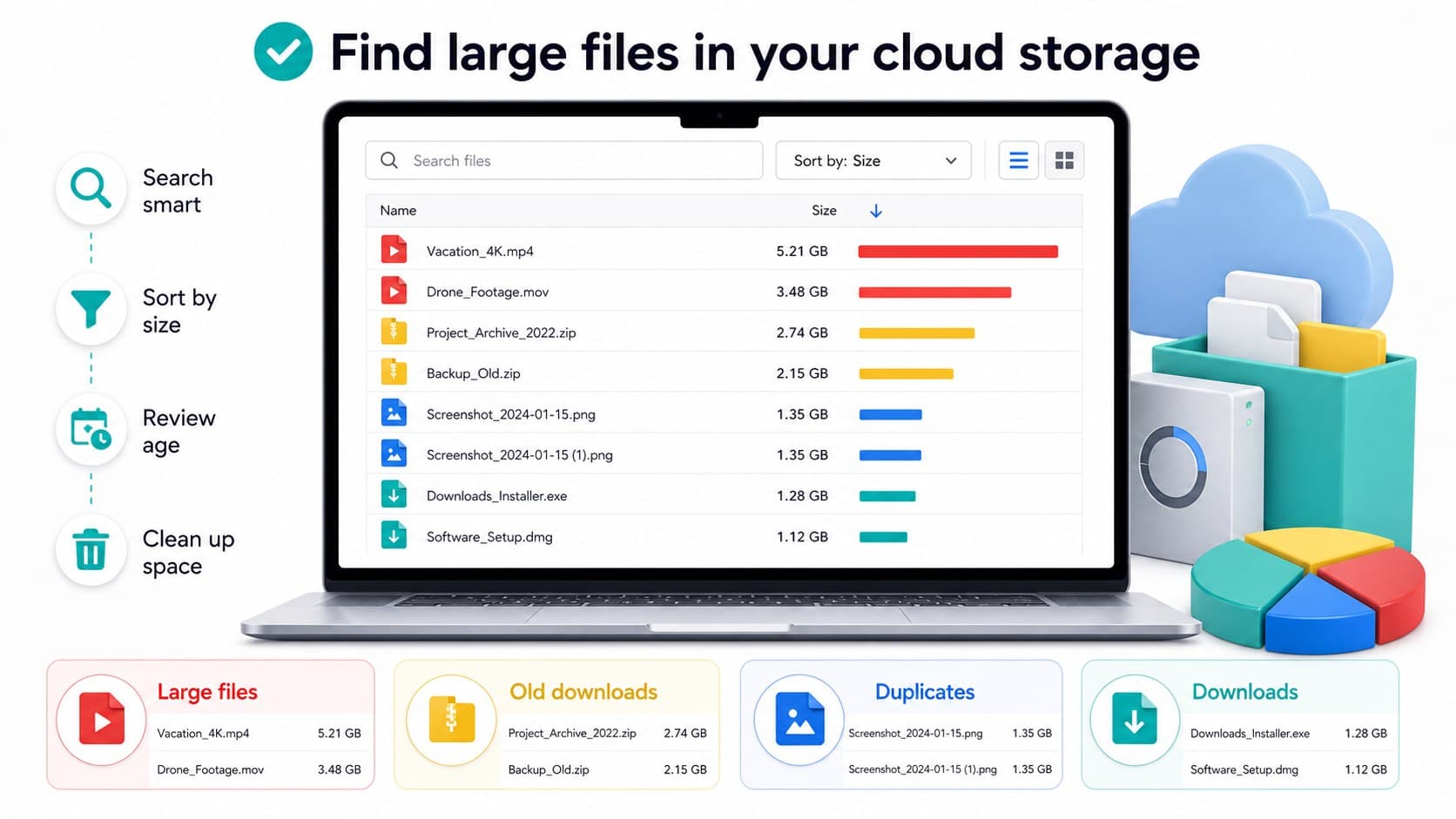
A single 4K video exported from a phone can be 2 GB. I once found 13.8 GB of old OBS screen recordings in a folder named "Quick Captures", which sounded harmless until the storage bar told the truth.
Clean Up In This Order
Do not start with family photos, tax documents, client files, school work, or anything emotional. Start with low-risk clutter.
| File Type | What To Check | Safer Action |
|---|---|---|
| Large videos | Old screen recordings, exports, duplicate clips | Download first, then delete cloud copy |
| ZIP files | Project archives, installer bundles, old backups | Keep only the latest useful version |
| Downloads | PDFs, installers, temporary attachments | Delete if the source is easy to find again |
| Duplicates | Repeated screenshots, copied folders, renamed files | Keep the clearest or newest copy |
| Shared files | Files owned by someone else | Remove your shortcut instead of deleting content |
This order keeps the risky decisions for later, after you have already freed meaningful space.
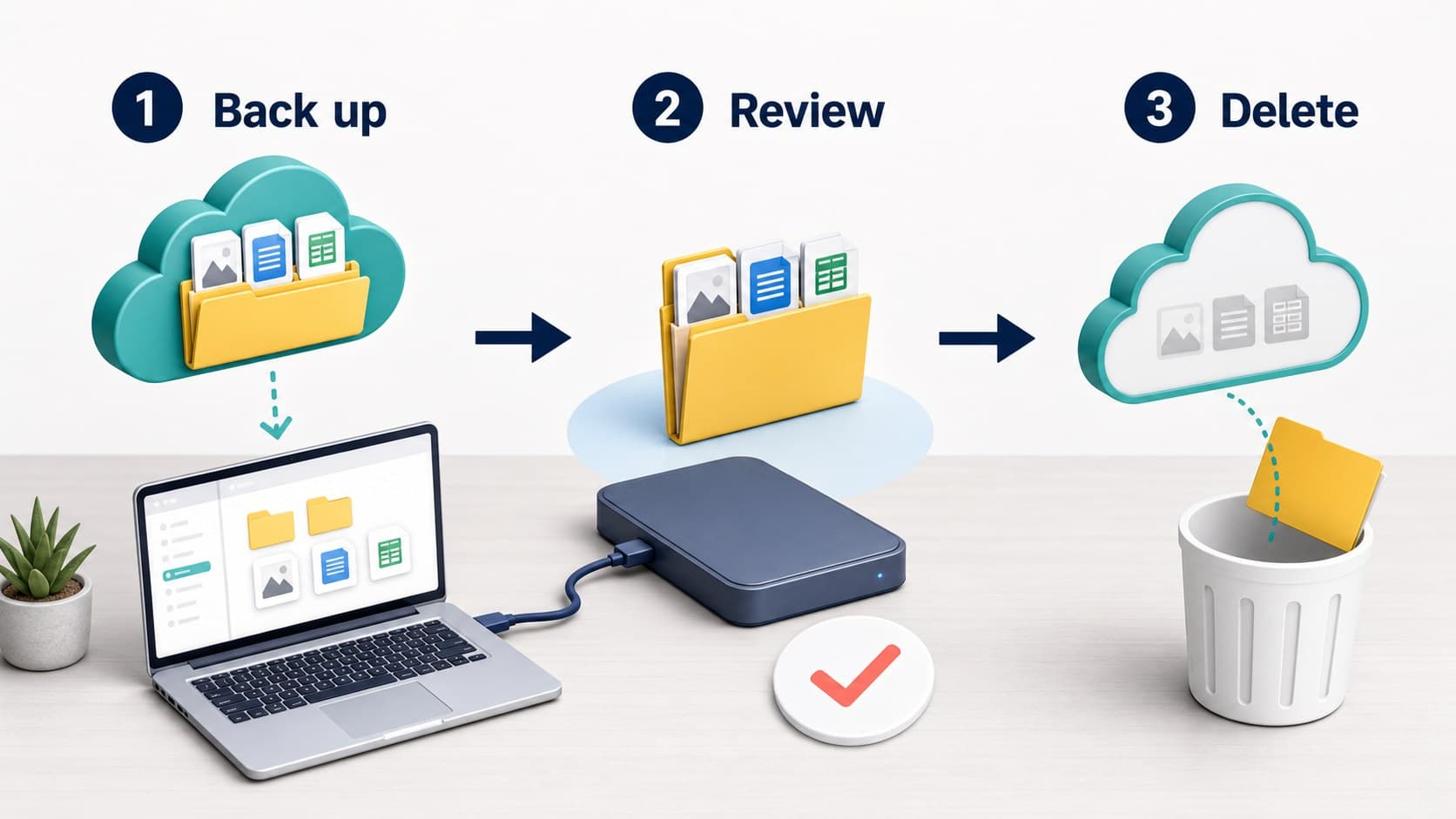
Make A Temporary Backup Folder First
Before deleting anything large, create a temporary folder on your computer or an external drive called something like:
`Cloud Cleanup Backup - July 2026`
Download files you are unsure about into that folder. Then open a few of them locally to make sure they work.
For photos and videos, check that thumbnails are not the only thing that downloaded. For documents, open the actual file. For ZIP files, confirm the archive is not corrupted.
This step sounds boring. It is also the difference between a tidy cleanup and a bad afternoon.
Use Search Operators To Find Hidden Clutter
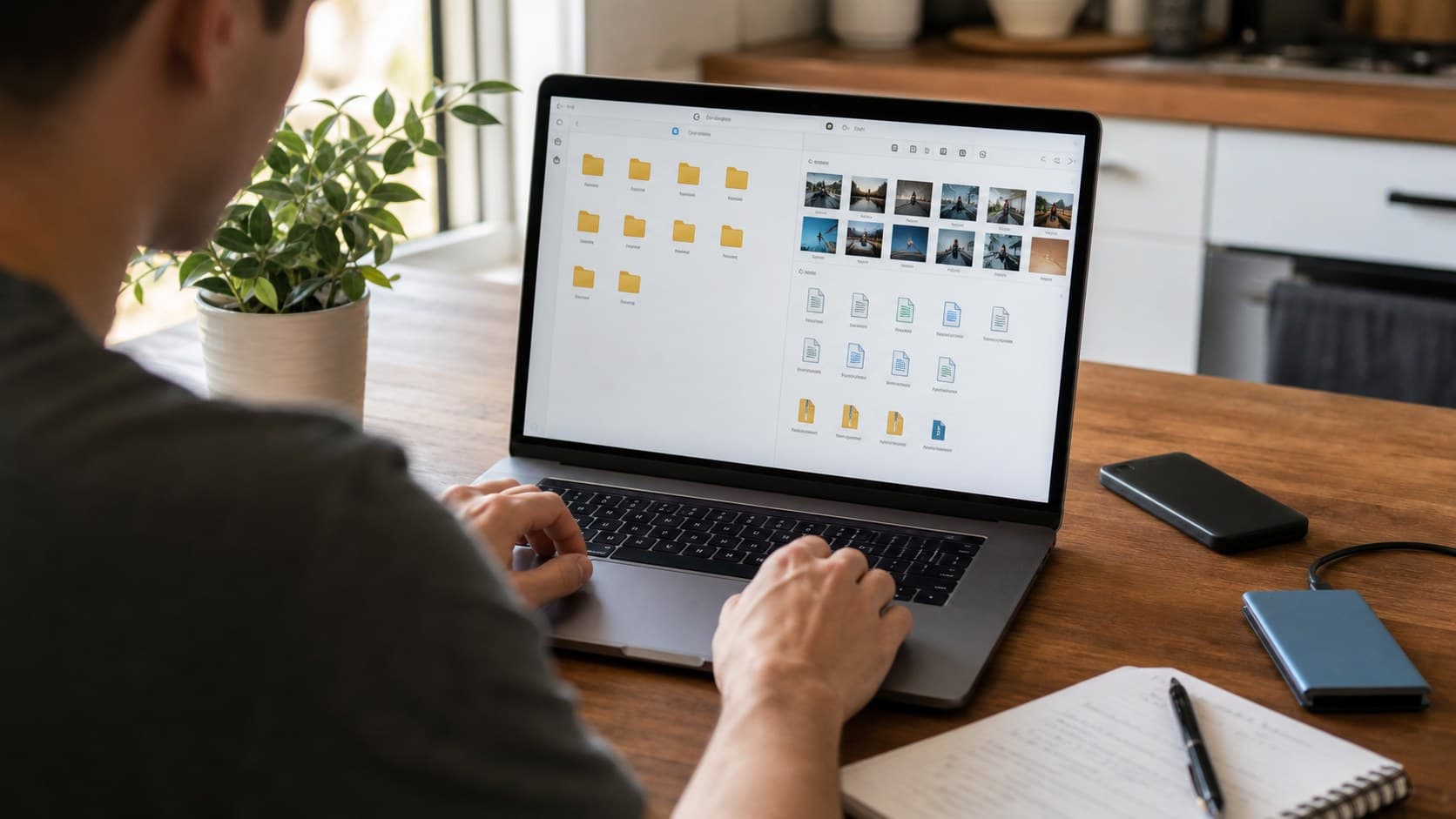
Cloud storage gets messy because old files hide under innocent names. Search helps you surface them fast.
Try searches like:
- `mp4` for videos
- `mov` for iPhone video files
- `zip` for compressed archives
- `pdf` for downloaded documents
- `screenshot` for repeated images
- `copy of` for duplicate files
- `final final` for old project versions
- `invoice` for documents you may want to keep carefully
If your cloud app supports filters, combine file type with date. For example, search videos older than two years, then sort by size.
Be Careful With Shared Folders
Shared folders can be confusing because deleting a file may affect other people, depending on who owns it and how the folder is configured.
Before removing anything shared, check ownership. If the file belongs to someone else, you may only need to remove it from your view or leave the shared folder. If you own the file and others rely on it, move it to an archive folder instead of deleting it immediately.
A good rule: if another person might expect the file to exist, do not delete it during a quick cleanup session.
Empty Trash Only After A Waiting Period
Deleting files usually moves them to Trash, Recently Deleted, or Recycle Bin. That is useful because it gives you a recovery window.
Do not empty trash immediately after a big cleanup. Wait at least seven days. During that time, use your devices normally and see if anything important seems missing.
If everything works, empty the trash later to actually reclaim the space.
This matters because many cloud services count trashed files against your storage until they are permanently deleted.
Turn Off Accidental Storage Fillers
After cleanup, stop the same problem from coming back.
Check these settings:
- Camera uploads: make sure every screenshot and short video is not syncing forever.
- Messaging apps: review whether media downloads are being saved automatically.
- Desktop sync: avoid syncing huge temporary folders.
- Email attachments: remove large attachments after saving the document you actually need.
- App backups: delete backups for devices you no longer own.
If you use Google Photos, iCloud Photos, or OneDrive camera upload, review video sync first. Video usually fills storage faster than documents.
Keep A Simple Archive System
A clean cloud account needs a simple structure. Complicated folder systems usually collapse after two weeks.
Use four main folders:
- `Active` for files you are using now
- `Archive` for files you may need later
- `Shared` for collaboration
- `To Review` for items you have not decided on yet
Set a monthly reminder to review the `To Review` folder. If it grows past 5 GB, sort it by size and clear the largest items first.
When Paying For More Storage Makes Sense
Cleaning up is smart, but storage upgrades are sometimes worth it.
If you use cloud storage for work, school, family photos, or device backups, paying a few dollars per month may be better than constantly fighting the limit. The key is to upgrade after cleanup, not before. Otherwise, the clutter simply expands into the new space.
Upgrade when:
- You already removed obvious junk
- Your important files genuinely exceed the free plan
- You need automatic photo or device backups
- You share large files often
- The time spent cleaning every month costs more than the plan
Final Check Before You Delete
Before you permanently delete files, run through this short check:
- Did you back up large files you might need?
- Did you open the backup copies?
- Did you avoid deleting shared files without checking ownership?
- Did you leave trash untouched for a few days?
- Did you stop automatic uploads that caused the problem?
Cloud cleanup works best when it is slow for the first 10 minutes and fast after that. Start with file size, protect the important stuff, and let the obvious clutter go first.
Found this useful?
Send it to someone who should read it.