Home Wi-Fi Security Checks You Should Do This Weekend
A simple home Wi-Fi checklist to improve security, remove unknown devices, update your router, and make your connection more reliable.
Your home Wi-Fi is one of those things you only think about when it becomes slow, drops calls, or refuses to load a video.
But Wi-Fi is not just about speed. It is also a security door into your home network. If your router is using an old password, outdated settings, or unknown connected devices, your internet can become slower and less safe without you noticing.
The good news is that you do not need to be a network expert. These checks are simple enough to do in one weekend.
Why Your Router Settings Matter
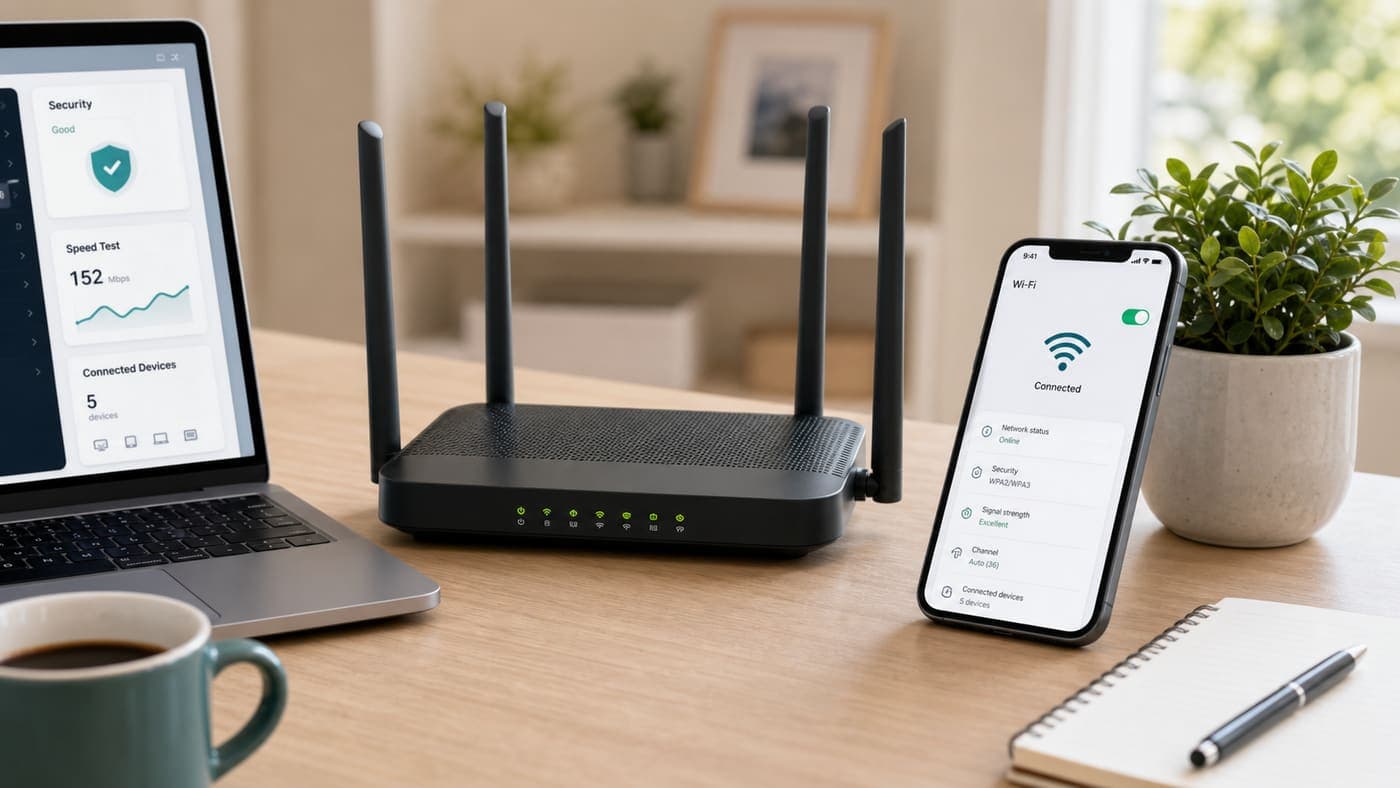
Your router connects every device in your home: phones, laptops, smart TVs, speakers, cameras, tablets, and sometimes work devices.
If the router is weakly protected, everything connected to it becomes easier to disturb.
A few bad settings can cause:
- Slower internet
- Random connection drops
- Unknown devices using your Wi-Fi
- Weak privacy for your home network
- Security risks from outdated router software
You do not have to change every advanced setting. Start with the checks that matter most.
1. Change the Default Router Login
Many people change their Wi-Fi password but forget the router admin password.
These are not the same thing.
Your Wi-Fi password lets devices connect to your internet. Your router admin password lets someone change router settings. If that admin password is still default, anyone connected to your network may be able to access the router settings page.
What to do:
- Open your router admin page
- Log in with the current admin details
- Find admin password or account settings
- Change the admin password
- Save it somewhere safe
Use a password that is different from your Wi-Fi password.
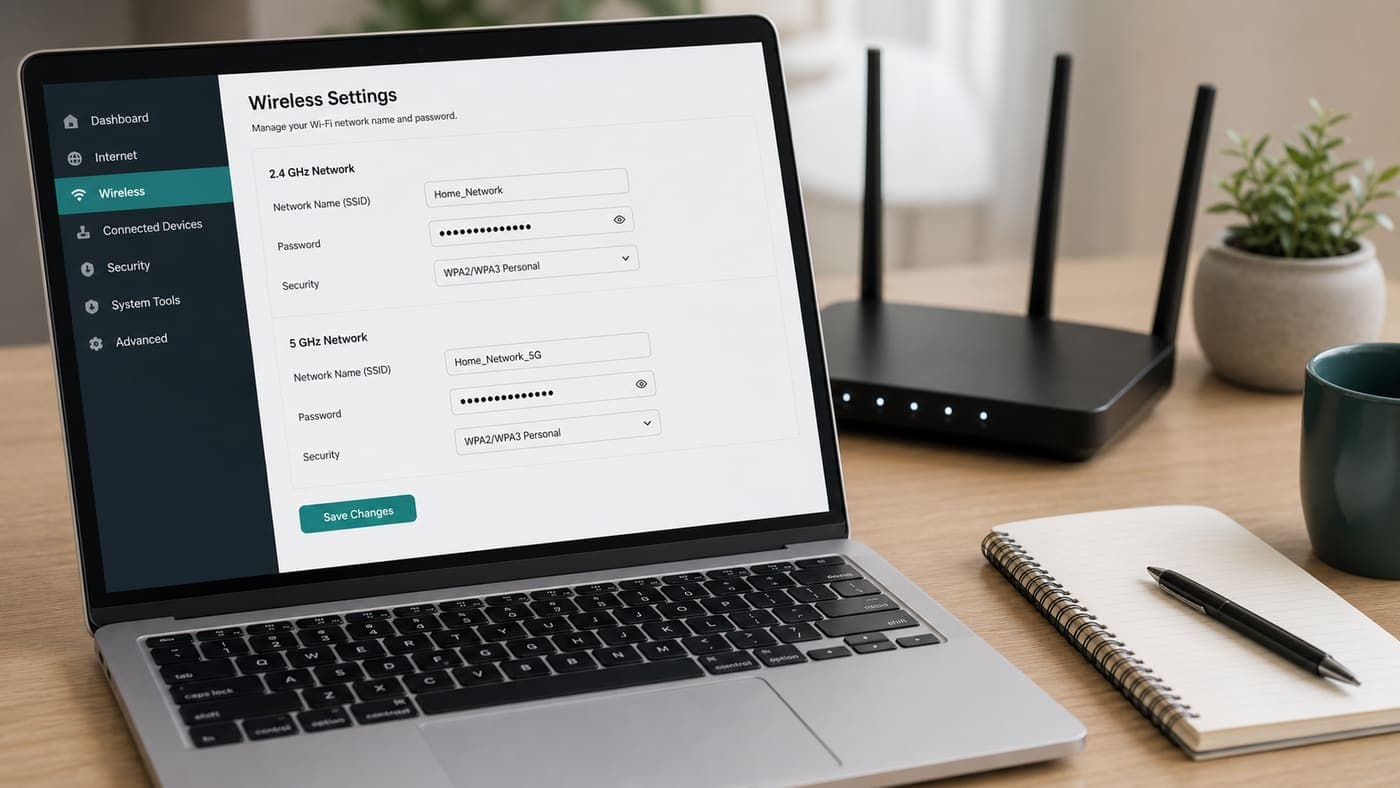
2. Use a Strong Wi-Fi Password
A weak Wi-Fi password makes it easier for neighbors, guests, or unwanted devices to connect.
Do not use simple passwords like your name, phone number, house number, or 12345678.
A better Wi-Fi password should be:
- At least 12 characters
- Hard to guess
- Different from your email or banking passwords
- Easy enough for you to store safely
- Not shared with everyone forever
Use your own mix of words and numbers. Do not reuse a password from another account.
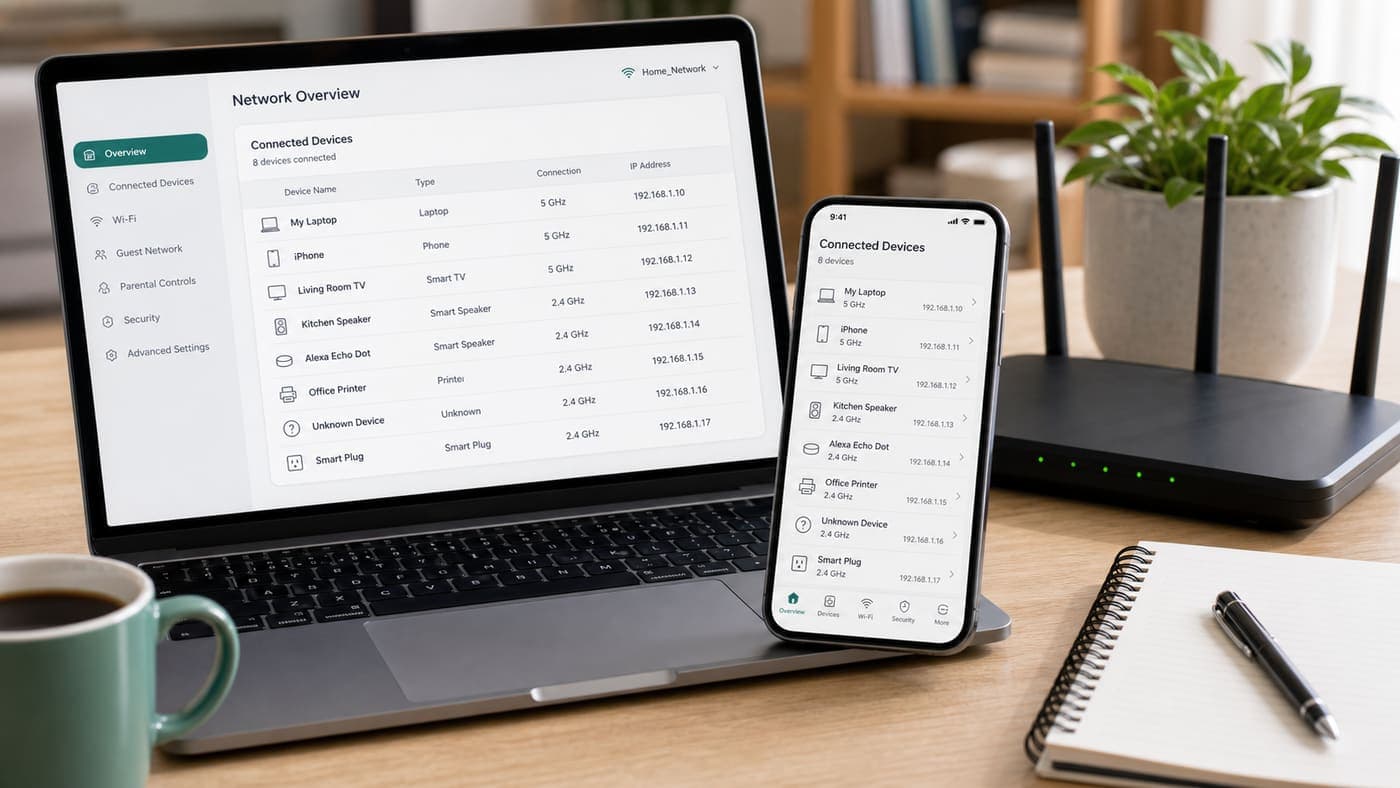
3. Check Who Is Connected
If your internet feels slow, unknown connected devices may be one reason.
Most routers show a list of connected devices. This list may include phones, laptops, TVs, tablets, printers, and smart home devices.
What to do:
- Open your router app or admin page
- Find connected devices or device list
- Look for names you do not recognize
- Disconnect or block unknown devices
- Change your Wi-Fi password if something looks suspicious
Some device names are unclear, so do not panic immediately. A smart TV or speaker may show a strange name. Check carefully before blocking.
4. Turn On WPA2 or WPA3 Security
Your router has a Wi-Fi security mode. This controls how your wireless network is protected.
Use WPA2 or WPA3 if your router supports it.
Avoid old security modes like WEP. They are outdated and weak.
What to check:
- Open wireless security settings
- Look for security mode
- Choose WPA2, WPA3, or WPA2/WPA3 mixed mode
- Avoid WEP or open network
- Save changes and reconnect devices if needed
If some old devices stop connecting after changing this setting, use WPA2/WPA3 mixed mode if available.
5. Update Router Firmware
Router firmware is the software that runs inside your router.
Updates can fix security issues, improve stability, and sometimes improve performance. Many people update phones and laptops but never update routers.
What to do:
- Open router app or admin page
- Find firmware update or system update
- Check for available updates
- Install the update
- Do not unplug the router during update
If your router has automatic updates, turn them on.
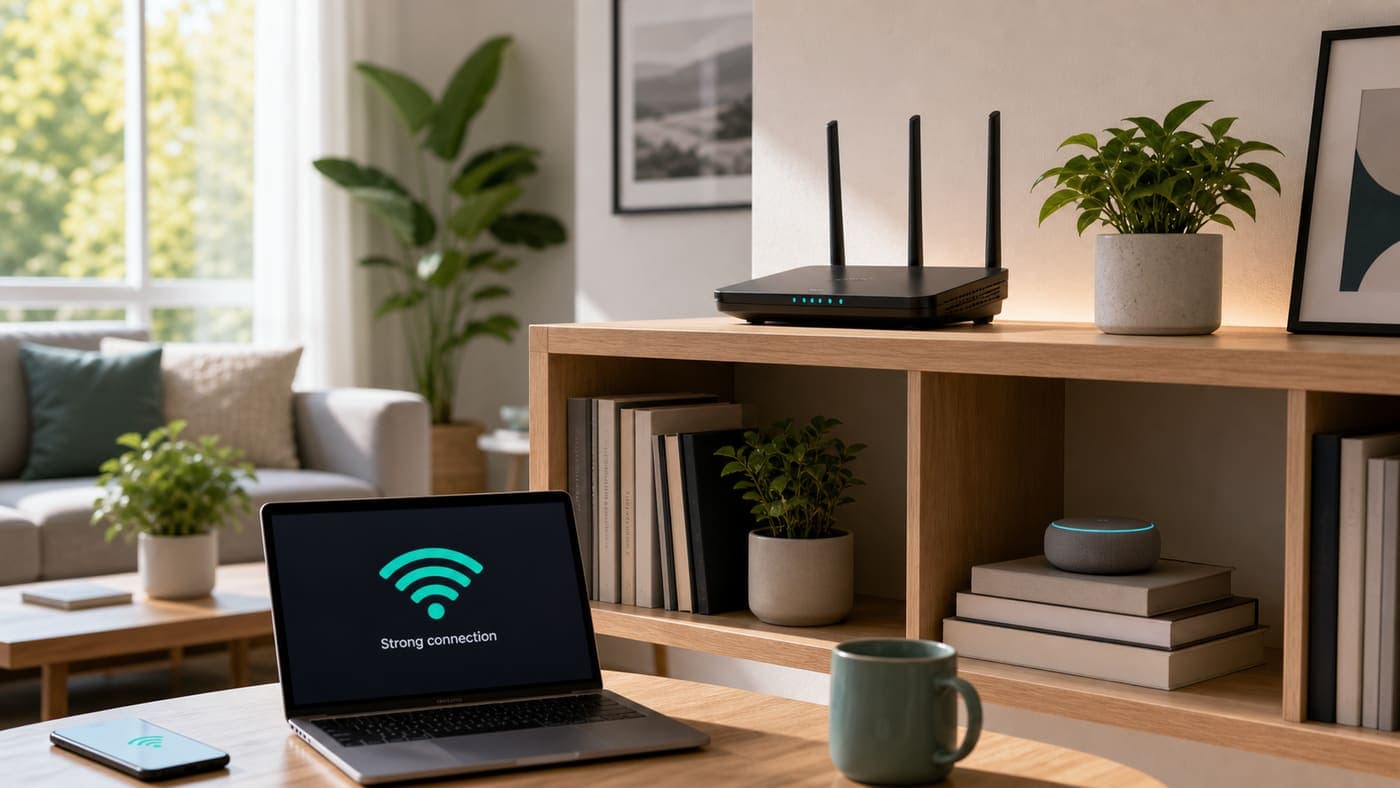
6. Move the Router to a Better Spot
Router placement can affect speed more than people expect.
If the router is hidden behind a TV, inside a cabinet, near thick walls, or close to appliances, the signal may become weaker.
Better placement:
- Keep it in an open area
- Place it higher if possible
- Avoid hiding it inside furniture
- Keep it away from microwaves and thick walls
- Put it near the center of your home
A better position can improve signal without buying anything.
7. Restart the Router the Right Way
Restarting can fix temporary speed and connection issues.
But do it properly.
What to do:
- Turn off the router
- Wait 30 seconds
- Turn it back on
- Wait a few minutes for full connection
- Test your speed again
Do not restart it every few minutes. If problems keep coming back, check firmware, placement, cables, and connected devices.
8. Create a Guest Network
A guest network lets visitors use internet without joining your main network.
This is useful if guests often ask for Wi-Fi, or if you have smart devices you do not fully trust.
What to do:
- Open router wireless settings
- Turn on guest network
- Set a separate guest password
- Disable access to local devices if available
- Share guest Wi-Fi instead of your main Wi-Fi
This keeps your main network cleaner and safer.
9. Rename Your Wi-Fi Network Safely
Your Wi-Fi name should not reveal too much.
Avoid using your full name, apartment number, phone number, or anything that identifies your home.
Better Wi-Fi name ideas:
- A simple word combination
- A neutral home name
- Something easy to recognize
- Nothing personal
- Nothing offensive
You do not need to hide the network name completely. Just avoid giving away personal details.
Quick Recap
| Check | Why it matters | Time needed |
|---|---|---|
| Change router admin password | Protects settings access | 5 minutes |
| Use strong Wi-Fi password | Keeps unknown users out | 5 minutes |
| Check connected devices | Finds unwanted devices | 5 minutes |
| Use WPA2 or WPA3 | Improves wireless security | 3 minutes |
| Update firmware | Fixes bugs and security issues | 10 minutes |
| Move router higher | Improves signal coverage | 5 minutes |
| Create guest network | Keeps main network cleaner | 5 minutes |
You do not need to become a networking expert. Start with the admin password, Wi-Fi password, connected devices, and firmware update. Those four checks alone can make your home Wi-Fi safer and more reliable.
Found this useful?
Send it to someone who should read it.