Phone Settings You Should Check Today
A quick checklist of hidden phone settings that can improve privacy, speed, storage, battery life, and security.
Most people use their phone every day but almost never check the settings that quietly control privacy, storage, battery life, and security. The good news: you do not need a new phone or any paid app to make your current one feel cleaner and safer.
Here are 7 phone settings worth checking today.
1. Check Which Apps Are Using Your Location
Location access is useful for maps, weather, and ride apps. But many apps ask for it even when they do not truly need it.
What to check:
- Open your phone settings
- Go to Privacy or Location
- Review app location permissions
- Change unnecessary apps to Ask every time or Never
Why it matters: Constant location access can drain battery and reveal more personal data than needed.
2. Turn Off Background Refresh for Apps You Rarely Use
Some apps keep refreshing in the background even when you are not using them. That can slow your phone, use data, and reduce battery life.
What to do:
- Open Settings
- Search for Background App Refresh or Battery Usage
- Turn it off for apps you rarely open
- Keep it on only for apps that genuinely need live updates
Best for: Shopping apps, games, old social apps, and apps you installed once but forgot about.
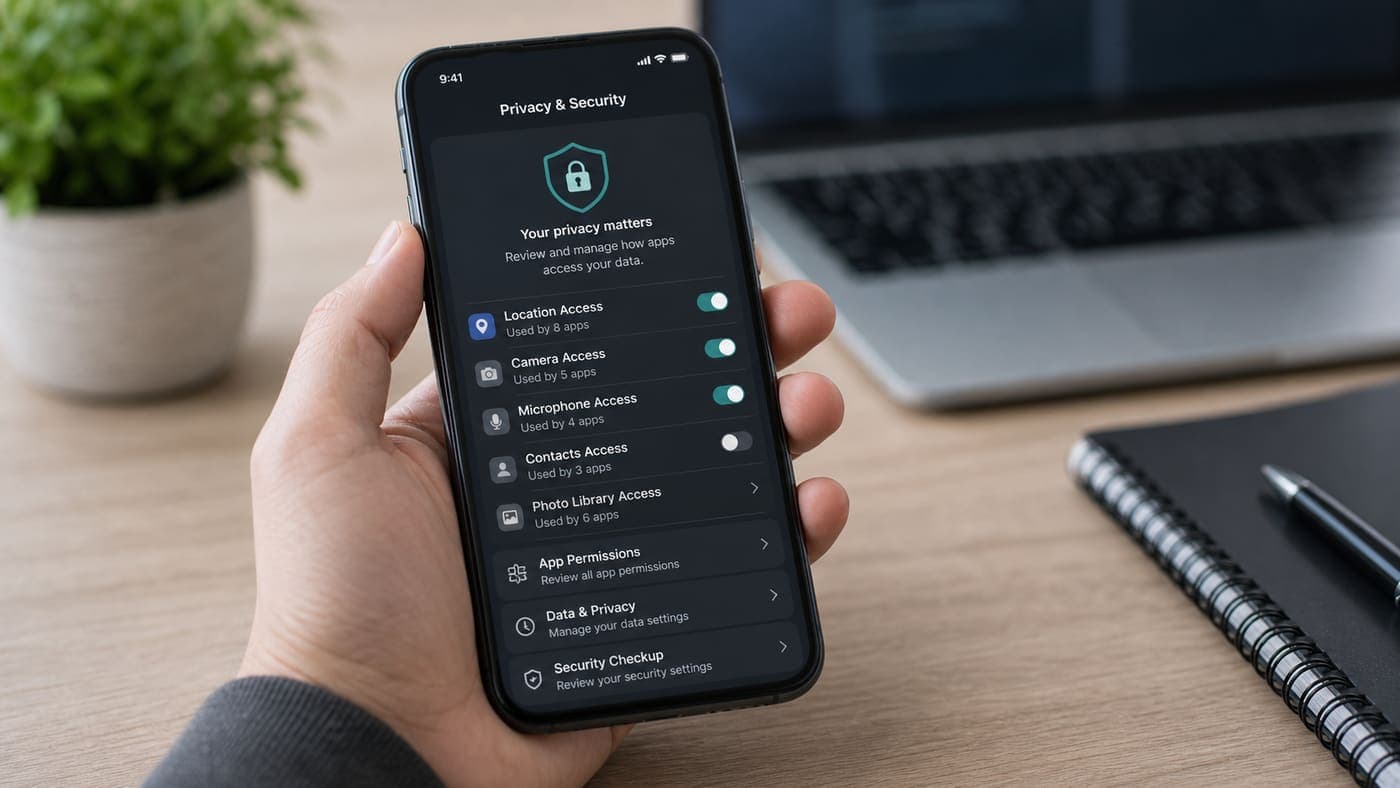
3. Review Camera and Microphone Permissions
If an app does not need your camera or microphone, it should not have access.
What to check:
- Go to Privacy settings
- Open Camera permissions
- Remove access from apps that do not need it
- Repeat the same for Microphone
Quick rule: A video calling app needs camera and mic. A calculator, flashlight, or wallpaper app usually does not.
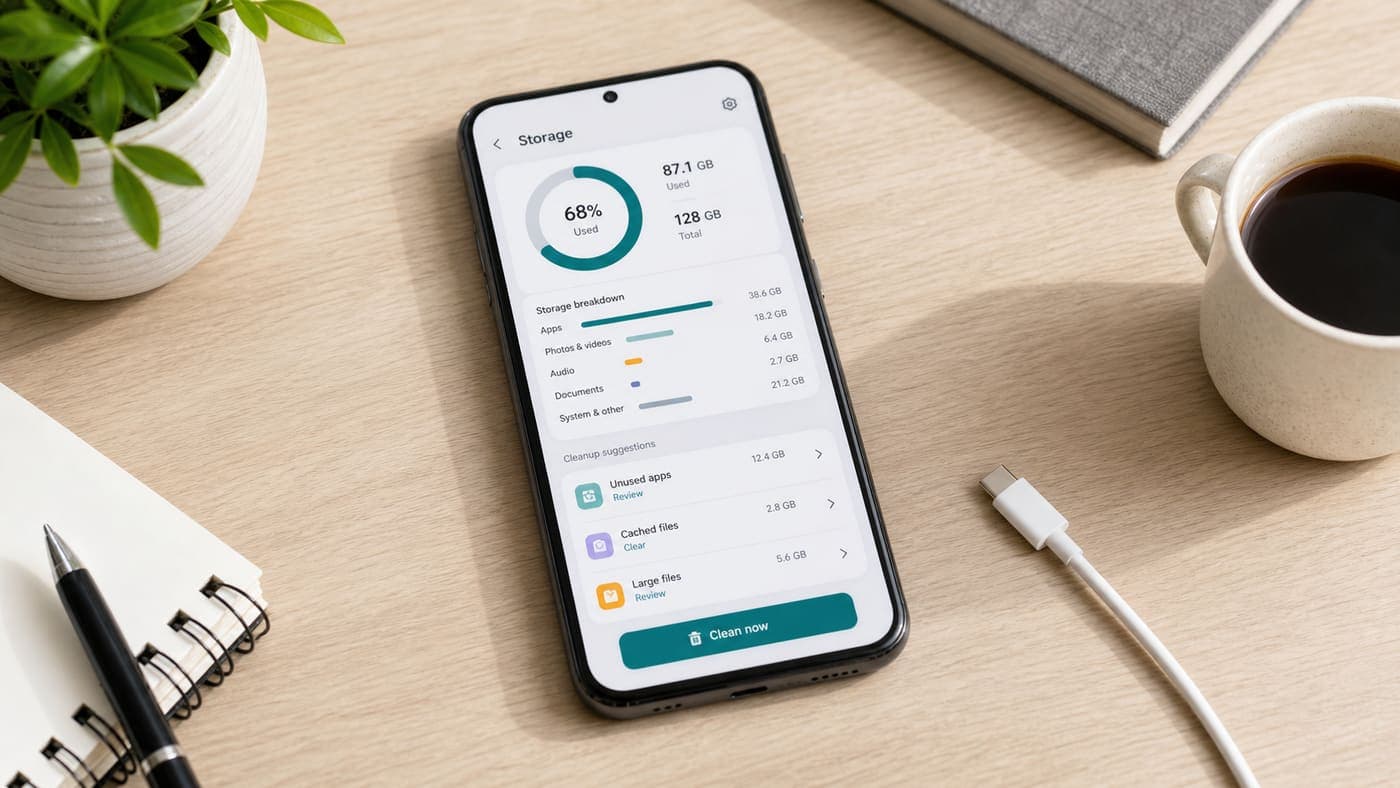
4. Clear Large Downloads and Old Media
Storage problems can make a phone feel slow. You do not always need to delete your favorite photos; often the biggest waste is old downloads, duplicate videos, and cached files.
What to do:
- Open Storage settings
- Check large files and downloads
- Delete old videos, duplicate screenshots, and unused files
- Move important photos to cloud storage or your computer
Why it works: Phones need free space to update apps, cache files, and run smoothly.
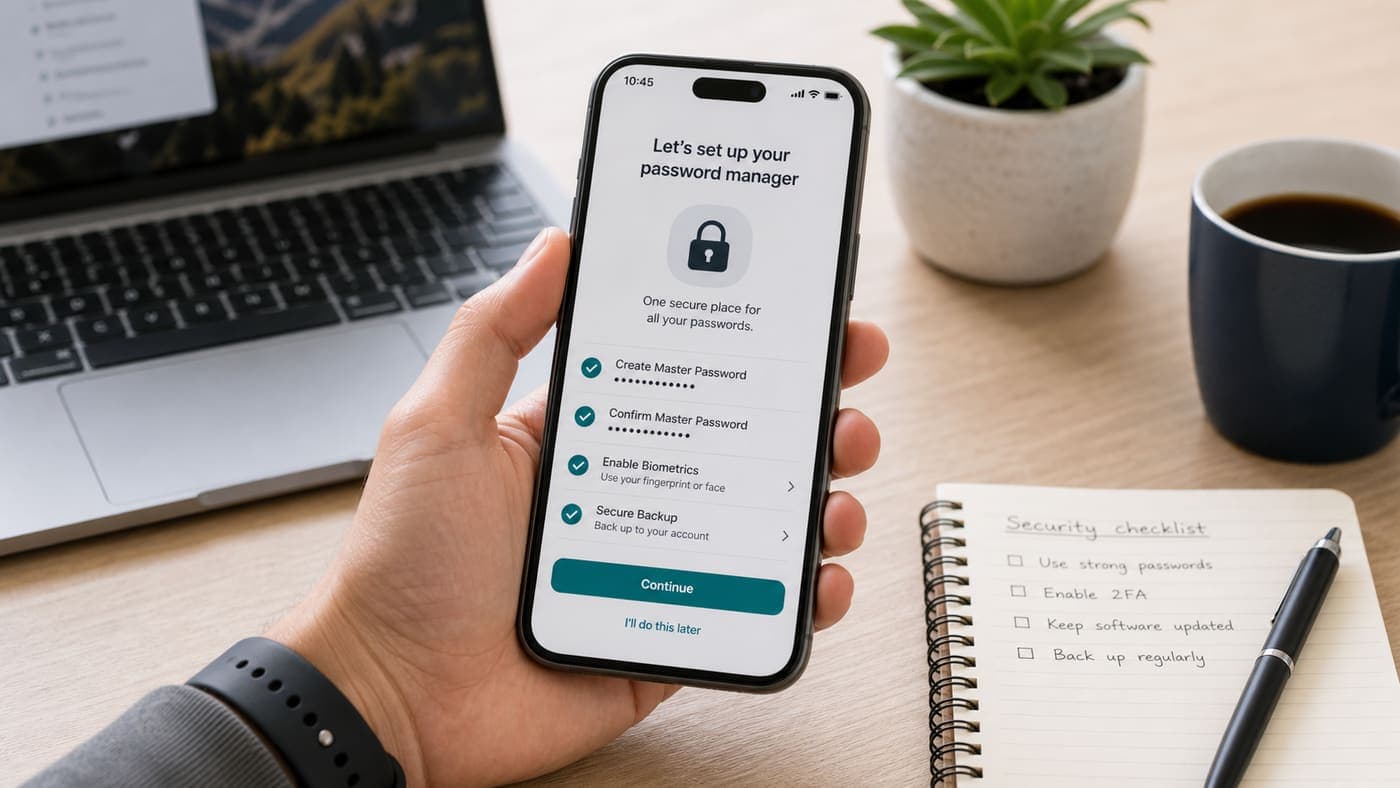
5. Use a Password Manager
Reusing the same password across websites is risky. If one site gets hacked, your other accounts can become vulnerable too.
What to do:
- Use a trusted password manager
- Save unique passwords for important accounts
- Turn on autofill from your phone settings
- Replace repeated passwords over time
Start with: Email, banking, social accounts, and your main Google or Apple account.
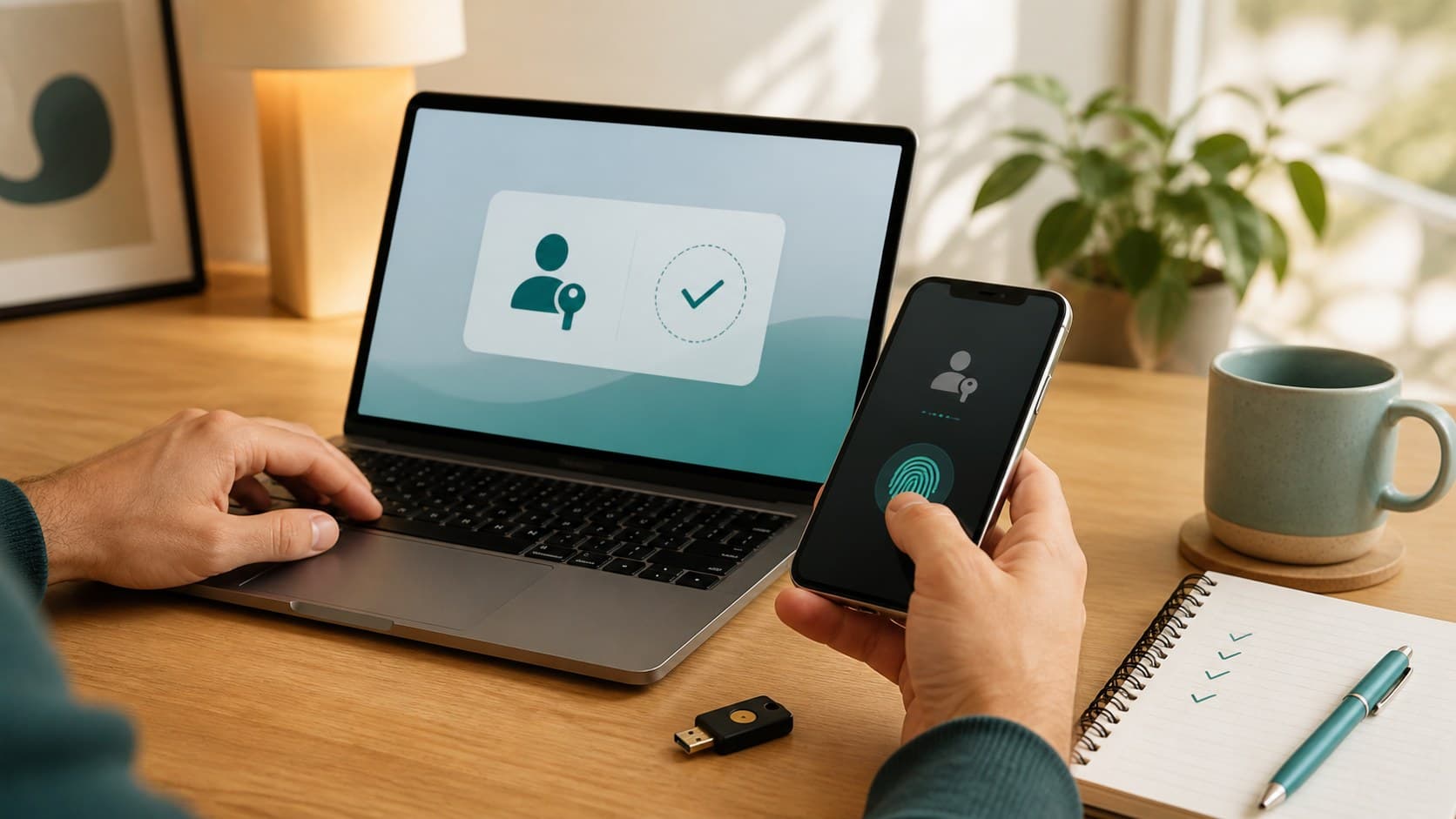
6. Turn On Two-Factor Authentication
Two-factor authentication adds one more step when signing in. It can stop someone from entering your account even if they know your password.
Best options:
- Authenticator app
- Security key
- SMS code, if no better option is available
Use it first on: Email, banking, cloud storage, GitHub, social media, and CMS admin accounts.
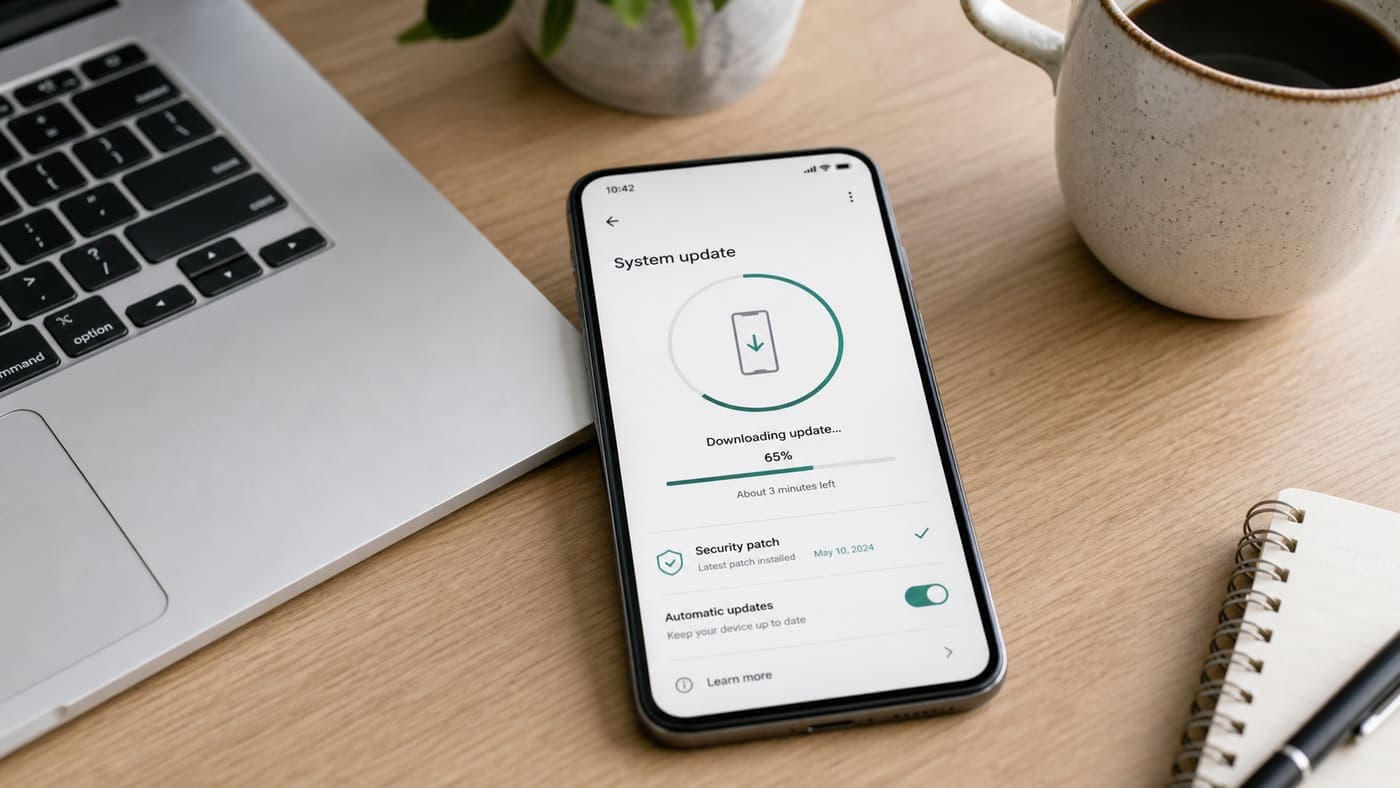
7. Check for Software Updates
Updates are not only about new features. Many updates include important security fixes and performance improvements.
What to do:
- Open Settings
- Go to Software Update
- Install available updates
- Keep automatic security updates enabled if your phone supports it
Tip: Update when your phone is charged and connected to Wi-Fi.
Quick Recap
| Setting | Why check it | Time needed |
|---|---|---|
| Location permissions | Better privacy and battery | 2 minutes |
| Background refresh | Less battery drain | 2 minutes |
| Camera and microphone | Better privacy | 2 minutes |
| Storage cleanup | Faster phone | 5 minutes |
| Password manager | Safer accounts | 10 minutes |
| Two-factor authentication | Stronger login security | 10 minutes |
| Software updates | Security and performance | 5 minutes |
You do not need to change every setting at once. Start with location, camera, microphone, and software updates. Those four checks alone can make your phone safer and cleaner in under 10 minutes.
Found this useful?
Send it to someone who should read it.