Speed Up an Older Laptop Before You Replace It: A Practical 45-Minute Checklist
Before you buy a new laptop, try this safe, practical cleanup checklist to reduce startup clutter, free storage, improve cooling, and make daily use feel smoother.
An older laptop does not always need to be replaced the moment it starts feeling slow. Sometimes it is genuinely outdated hardware. But very often, the problem is a pileup of startup apps, full storage, browser clutter, background sync, dust, heat, and settings that were never revisited after years of use.
This checklist is designed for normal people, not repair technicians. You do not need to open the laptop, download suspicious “speed booster” apps, or wipe everything. Set aside about 45 minutes, move carefully, and test the laptop after each section.
Before You Start: Back Up the Important Stuff
Do this first, even if your laptop only feels “a little slow.” Cleaning up storage and uninstalling apps is usually safe, but a backup gives you room to work without panic.
Copy your important documents, photos, work files, and project folders to at least one of these places:
| Backup option | Best for | Quick note |
|---|---|---|
| External drive | Large files, photos, videos | Keep it unplugged after the backup finishes |
| Cloud storage | Documents and daily files | Wait until sync is complete |
| Second computer | Emergency copy | Useful before bigger cleanup work |
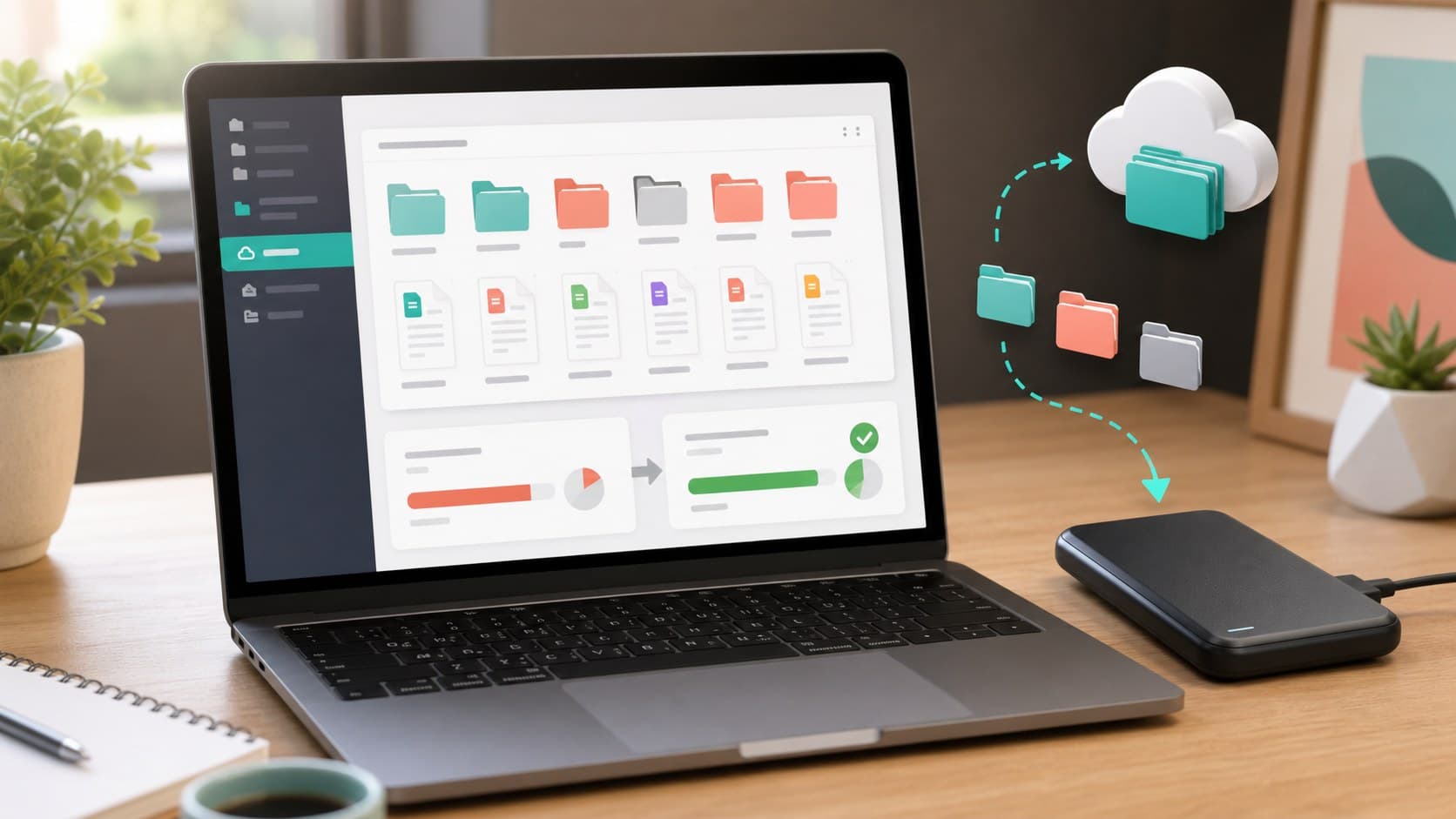
You do not need to back up every temporary download or installer. Focus on anything you would be upset to lose.
1. Restart First, Then Judge the Real Problem
If your laptop has been sleeping for days or weeks, restart it before changing anything. Sleep mode is convenient, but it can leave old browser sessions, update processes, and background services in memory.
After restarting, wait five minutes. Then notice what actually feels slow:
| Symptom | Likely cause |
|---|---|
| Slow right after login | Too many startup apps |
| Slow when browsing | Too many tabs, extensions, or low memory |
| Slow opening files | Storage is nearly full or drive is struggling |
| Loud fan and hot keyboard | Dust, blocked vents, or heavy background tasks |
| Slow only on battery | Power mode is limiting performance |
This helps you avoid random fixes. A slow laptop is not one problem. It is usually several small problems stacked together.
2. Disable Startup Apps You Do Not Need
Startup apps are one of the easiest wins. Many programs quietly set themselves to launch every time your laptop turns on, even if you only use them once a month.
Look for apps like game launchers, chat tools, update helpers, cloud tools you no longer use, printer utilities, and old manufacturer software.
Keep security software, touchpad tools, audio drivers, and anything you recognize as essential. Disable the rest from startup rather than uninstalling immediately. That way, you can reverse the change if needed.
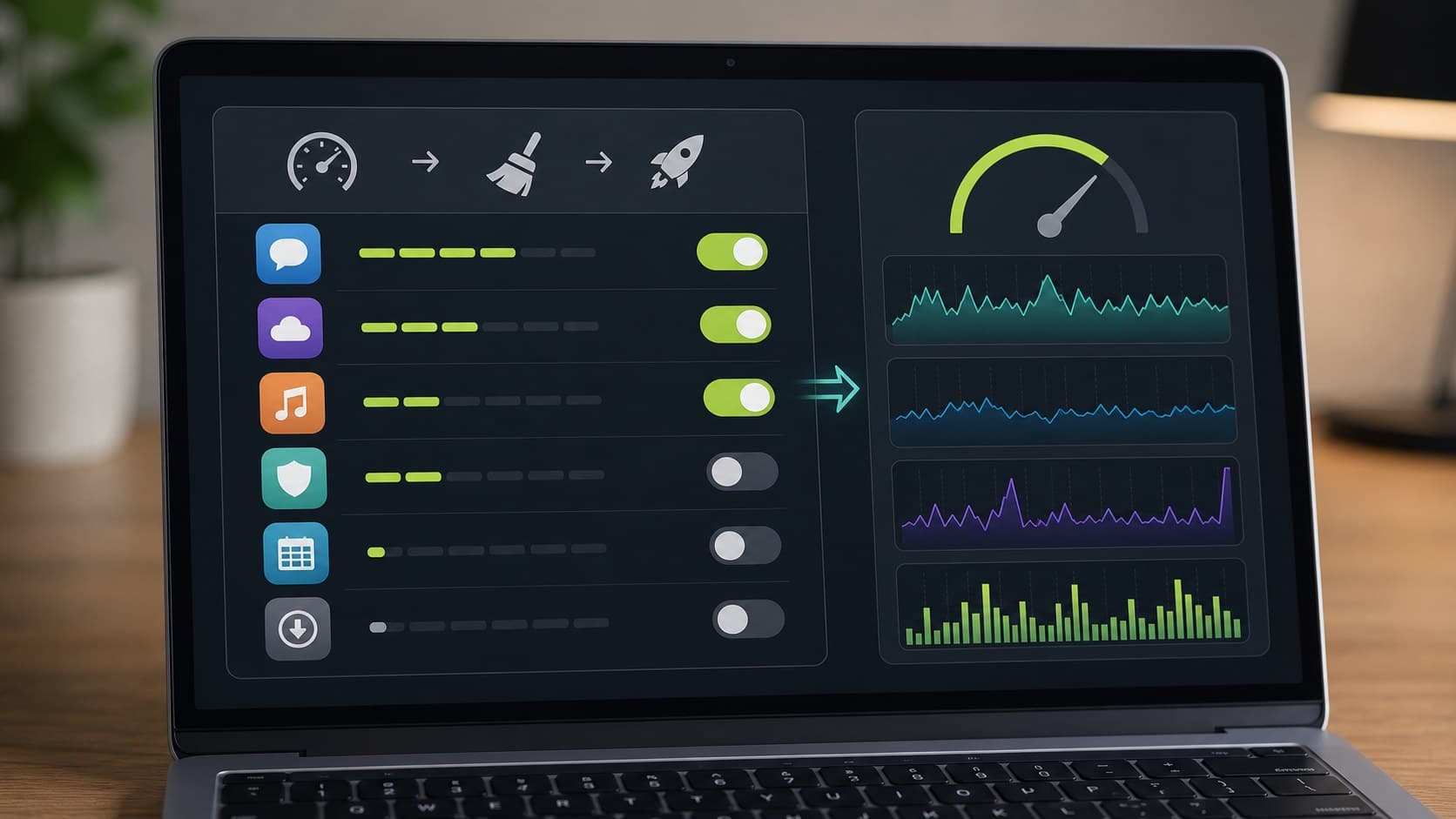
A good rule: if you can open the app manually when you need it, it probably does not need to launch automatically.
3. Free Up Storage Without Deleting Random Files
A nearly full drive can make a laptop feel much slower, especially if the system has no room for updates, temporary files, browser cache, and virtual memory.
Start with the safest categories:
| What to clean | Why it helps | Safe approach |
|---|---|---|
| Downloads folder | Often full of old installers and duplicates | Sort by size and date |
| Trash or Recycle Bin | Deleted files may still occupy space | Empty after reviewing |
| Old videos | Usually large | Move to external storage |
| Duplicate exports | Common with PDFs, images, and projects | Keep the newest useful version |
| Unused apps | Can free space and reduce background tasks | Remove only apps you recognize |
Avoid deleting system folders, driver folders, or anything you do not understand. If a file looks technical and you are unsure, leave it alone.
Try to keep at least 15% to 20% of your drive free. You do not need a perfect number, but a laptop with breathing room usually behaves better.
4. Tame Browser Tabs and Extensions
For many people, the browser is the real laptop workload. A laptop can feel “old” simply because it is trying to hold dozens of tabs, autoplaying websites, extensions, and web apps at once.
Start here:
- Close tabs you are not using today.
- Bookmark useful pages instead of leaving them open forever.
- Remove extensions you do not recognize or no longer use.
- Keep only the browser add-ons you actively trust and need.
- Try one window for work and one window for personal browsing.
Extensions deserve special attention. Even helpful extensions can slow down page loading if you have too many. If your browser becomes faster after disabling a few, you found part of the problem.
5. Update the System, But Do It Patiently
Updates can temporarily make a laptop feel slower while they download, install, index, or restart. But skipping updates for months can create its own problems.
Plug in the charger, connect to stable internet, and check for system updates. Let them finish fully. Restart when asked.
Also update your main browser and the apps you use daily. You do not need to chase every optional utility, but your browser, office apps, cloud sync app, and video call app should be current.
After updates, give the laptop a few minutes to settle. Some systems run background indexing after a major update, which can make performance look worse for a short time.
6. Clean Vents and Improve Cooling
Heat is a quiet performance killer. When a laptop gets too hot, it may slow itself down to protect the hardware. That can look like random lag, loud fans, frozen video calls, or games and apps suddenly becoming choppy.
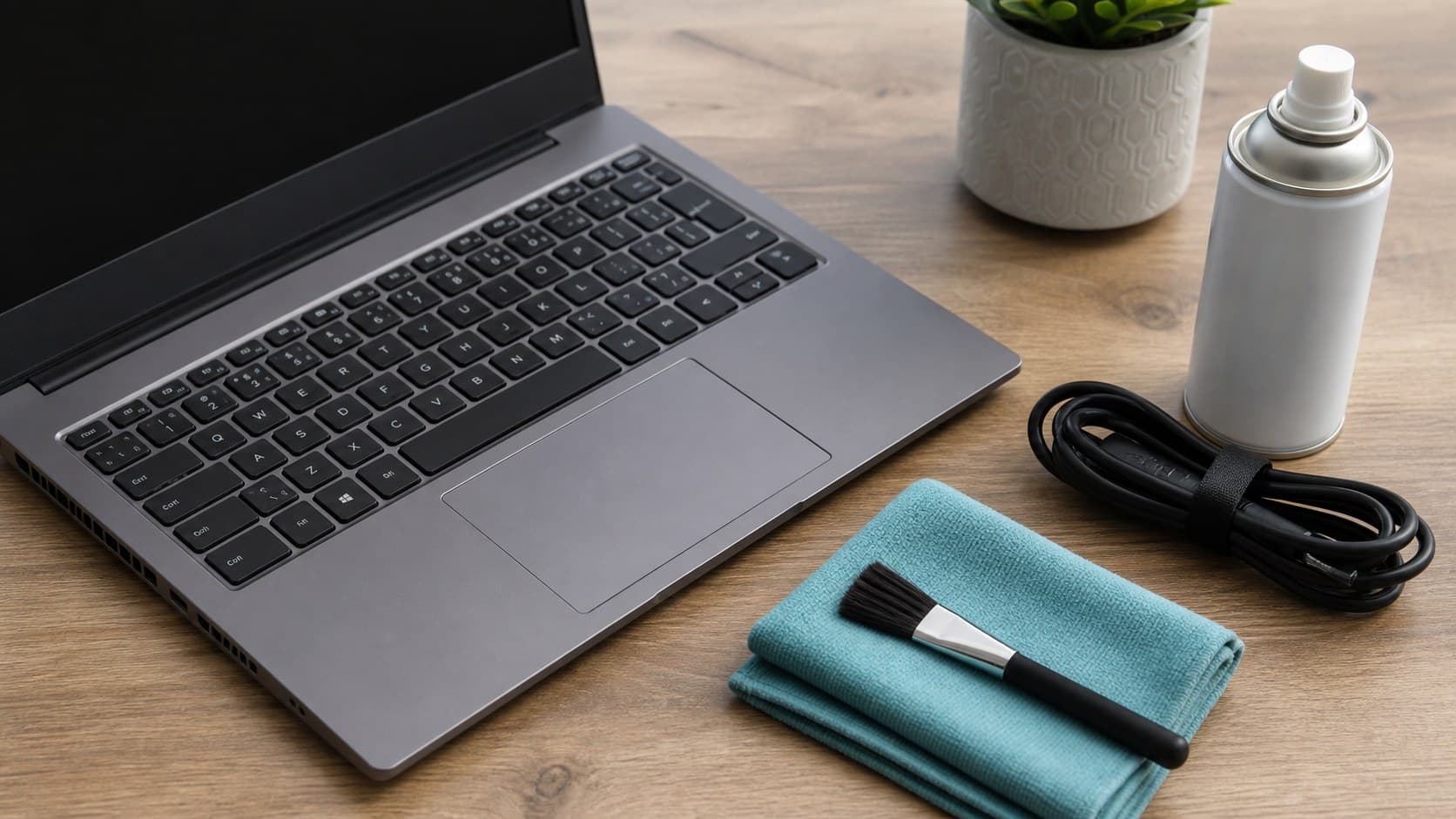
Do this safely:
| Cooling step | How to do it |
|---|---|
| Clear the vents | Shut down the laptop and gently remove visible dust |
| Use a firm surface | Avoid beds, blankets, and soft couches |
| Clean the keyboard area | Use a microfiber cloth and a soft brush |
| Check the fan sound | A constant grinding sound may need professional repair |
| Give it space | Keep the rear and side vents open while working |
Do not spray liquid directly onto the laptop. If you use compressed air, use short bursts and follow the can’s instructions. The goal is gentle cleaning, not forcing dust deeper inside.
7. Check Power Mode
Many laptops reduce performance on battery to save energy. That is useful when traveling, but frustrating when you are trying to work at a desk.
When plugged in, choose a balanced or performance-friendly power mode. On battery, use a sensible balanced mode unless you truly need maximum speed.
Also look at battery health if your laptop is several years old. A worn battery can cause strange shutdowns or poor performance away from the charger. That does not always mean you need a new laptop; sometimes a battery replacement is enough.
8. Remove Apps You Forgot About
Uninstalling unused apps can reduce background activity and free storage. Be conservative. Remove games you no longer play, old trial software, duplicate utilities, expired VPN apps, and tools from hardware you no longer own.
Do not remove drivers, system components, or apps you cannot identify. If an app name looks unfamiliar, search your own memory first: did it come with a printer, camera, audio device, or work software?
After uninstalling several apps, restart the laptop. This helps clear leftover background processes.
9. Watch for the Upgrade Signals
This checklist can make many laptops feel better, but it cannot turn very old hardware into a modern machine. If the laptop is still painful after cleanup, look at the pattern.
| If this keeps happening | What it may mean |
|---|---|
| Storage is always full | You may need a larger drive or better file habits |
| Browser slows with a few tabs | You may need more memory |
| Laptop is hot even when idle | Cooling may need repair |
| Apps no longer support your system | Replacement may be more practical |
| Battery lasts only minutes | Battery service may solve it |
If your laptop has upgradeable memory or storage, a small hardware upgrade can be cheaper than replacement. If it is sealed, very old, unsupported, or unreliable for work, replacing it may be the better long-term choice.
A Simple 45-Minute Plan
Use this quick order if you want the fastest practical result:
| Time | Task |
|---|---|
| 5 minutes | Restart and observe what feels slow |
| 10 minutes | Disable unnecessary startup apps |
| 10 minutes | Clean downloads, trash, and large old files |
| 5 minutes | Remove unused browser extensions |
| 10 minutes | Update system and key apps |
| 5 minutes | Clean vents and improve airflow |
Final Takeaway
Before replacing an older laptop, give it one careful maintenance session. Back up your important files, reduce startup clutter, free storage, clean up the browser, update the essentials, and improve cooling. These steps will not fix every aging machine, but they often make daily tasks feel smoother without spending money.
If the laptop still struggles after that, you will at least know the problem is more likely hardware, not clutter.
Found this useful?
Send it to someone who should read it.