How to Set Up Your First ChatGPT Dot Without Giving It Too Much Access
ChatGPT dots are always-on AI agents. Here is who gets one, how to set one up in five steps, and the permission to lock down first.
ChatGPT dots are AI agents that keep working after you close the chat. That is what makes them useful, and it is also why the setup deserves a few careful minutes. This guide covers how to set up ChatGPT dots, who can get one, and the one permission to lock down before you hand over a task.
What are ChatGPT dots?
OpenAI launched dots on September 29, 2026. A dot is an always-on agent inside ChatGPT with its own cloud computer, browser and memory. It can connect to your email, calendar and files, run check-ins on a schedule, and bring finished work back to you.
A normal chat waits for you to ask. A dot keeps an eye on an ongoing job, such as a trip plan, a job search or a monthly bill check.
Which ChatGPT plans include dots?
- Included: Pro and Business Premium. Each comes with one dot at no extra cost.
- Not included: Free, Go and Plus.
- Beta only: Enterprise, Edu and Healthcare, and only if an admin switches it on.
- Region limit: Pro users in the UK, Switzerland and the European Economic Area do not have access at launch.
The rollout is gradual, so an eligible account may not see dots straight away.
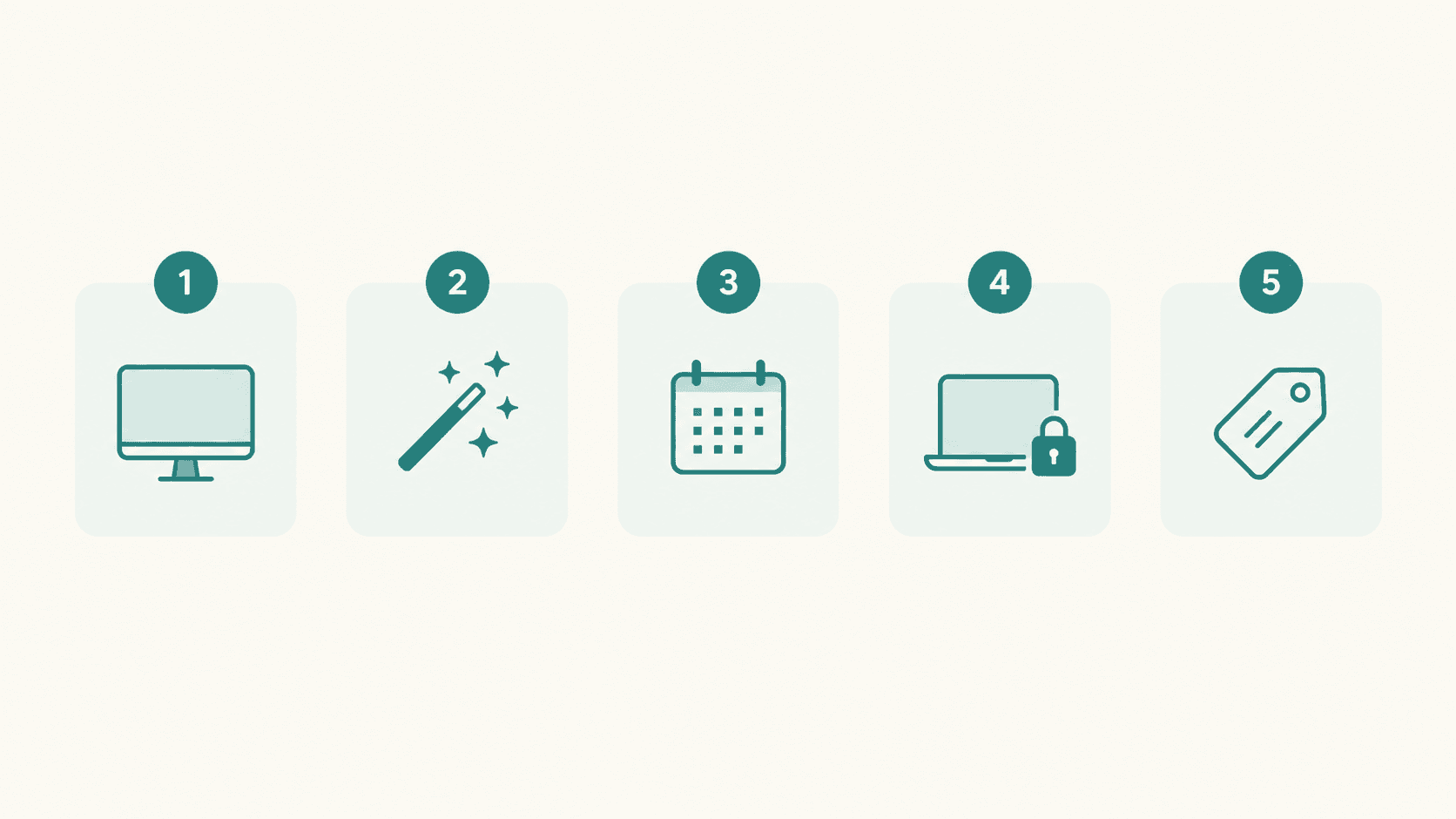
How to set up ChatGPT dots in five steps
You need a computer for this part. A dot cannot be created on a phone yet.
- Open dots. Use the ChatGPT desktop app or ChatGPT in a desktop browser.
- Follow the intro wizard. It walks through the basics in a few screens.
- Connect one app. Start with your calendar. Email and files can wait until you trust the dot.
- Skip computer access. The desktop app asks whether to connect your own computer. Say no for now. The dot already has its own cloud computer.
- Name it. Pick a name, shape and color so it is easy to spot.
Set one rule before the first task
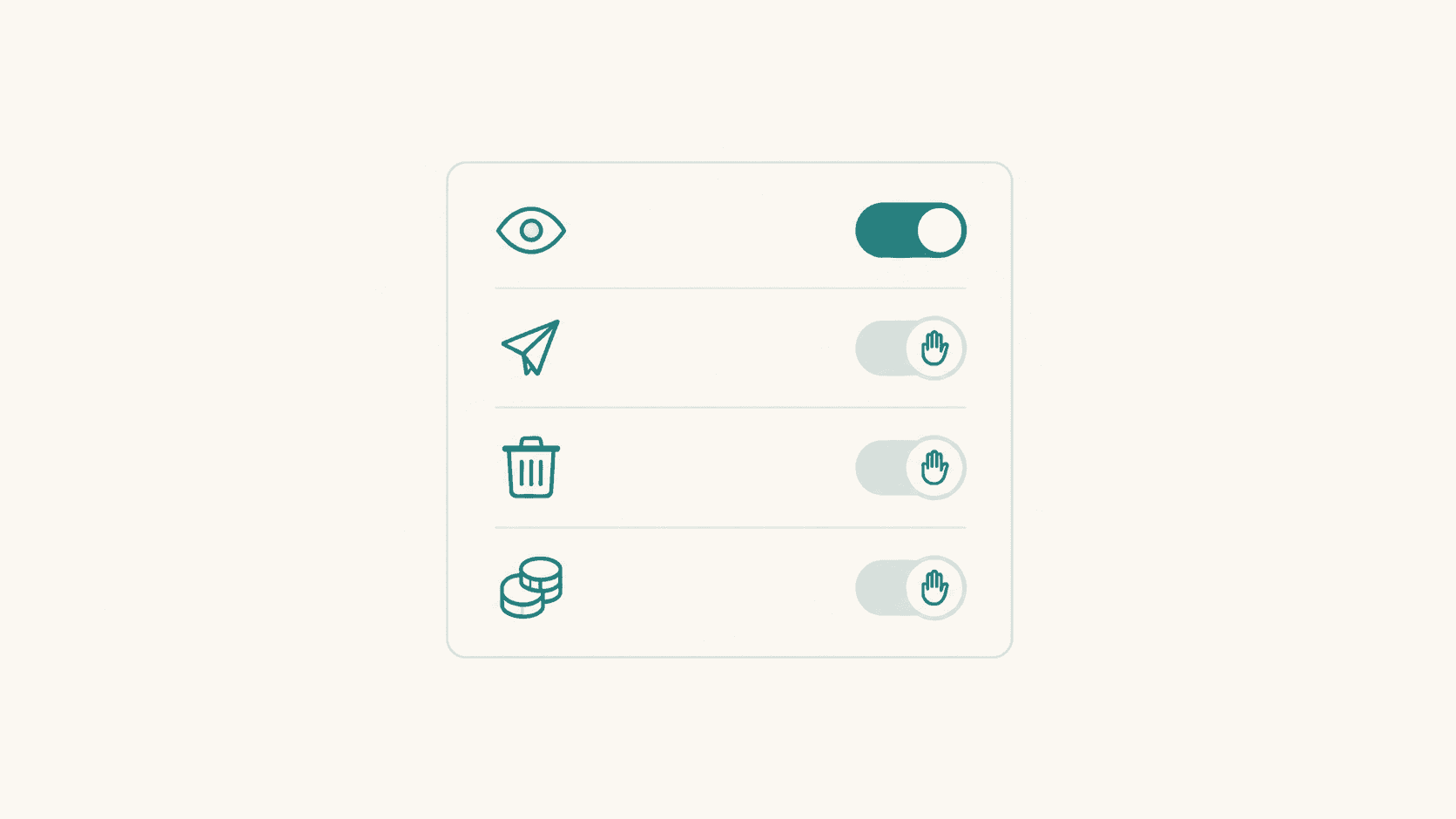
Open Settings > Personalization > Custom rules. Each rule gets one of four settings:
- Take action without asking
- Take action when you say so
- Ask before taking action
- Hand off to you
Set anything that sends, deletes or spends to Ask before taking action. Reading and summarizing can run freely.
Two safeguards stay on whatever you choose. Auto-review checks actions that affect your accounts or share information, and Custom Rules cannot override it. Password changes always need you.
Give it one small job first
Start with a task where a mistake costs nothing. For example:
> Every weekday at 8 a.m., check my calendar and tell me about clashes or meetings with no location.
Run it for a week. Open Activity View each day to see what the dot did in the background. If the results hold up, connect a second app and add a second job.
OpenAI's own warning is worth keeping in mind: "Dots can still make mistakes, so always review consequential work."
If something goes wrong, use Pause. It stops the dot's current task but not future scheduled runs, so ask it to cancel the schedule too. Deleting the dot is the last resort, because it cannot be undone.
The short version
- Dots come with Pro and Business Premium, not with Free, Go or Plus.
- Create the dot on desktop, connect one app, and skip computer access.
- Set sending, deleting and spending to "Ask before taking action".
- Start with one small recurring job and review it for a week.
Sources
- Introducing dots, OpenAI
- Meet dots, ChatGPT docs
- Get started with your dot, ChatGPT docs
- Control your dot, ChatGPT docs
Found this useful?
Send it to someone who should read it.