How to Make a Home Tech Inventory Before Something Breaks
A practical step-by-step guide to recording your household devices, serial numbers, warranties, cables, and support details so repairs, replacements, and claims are easier later.
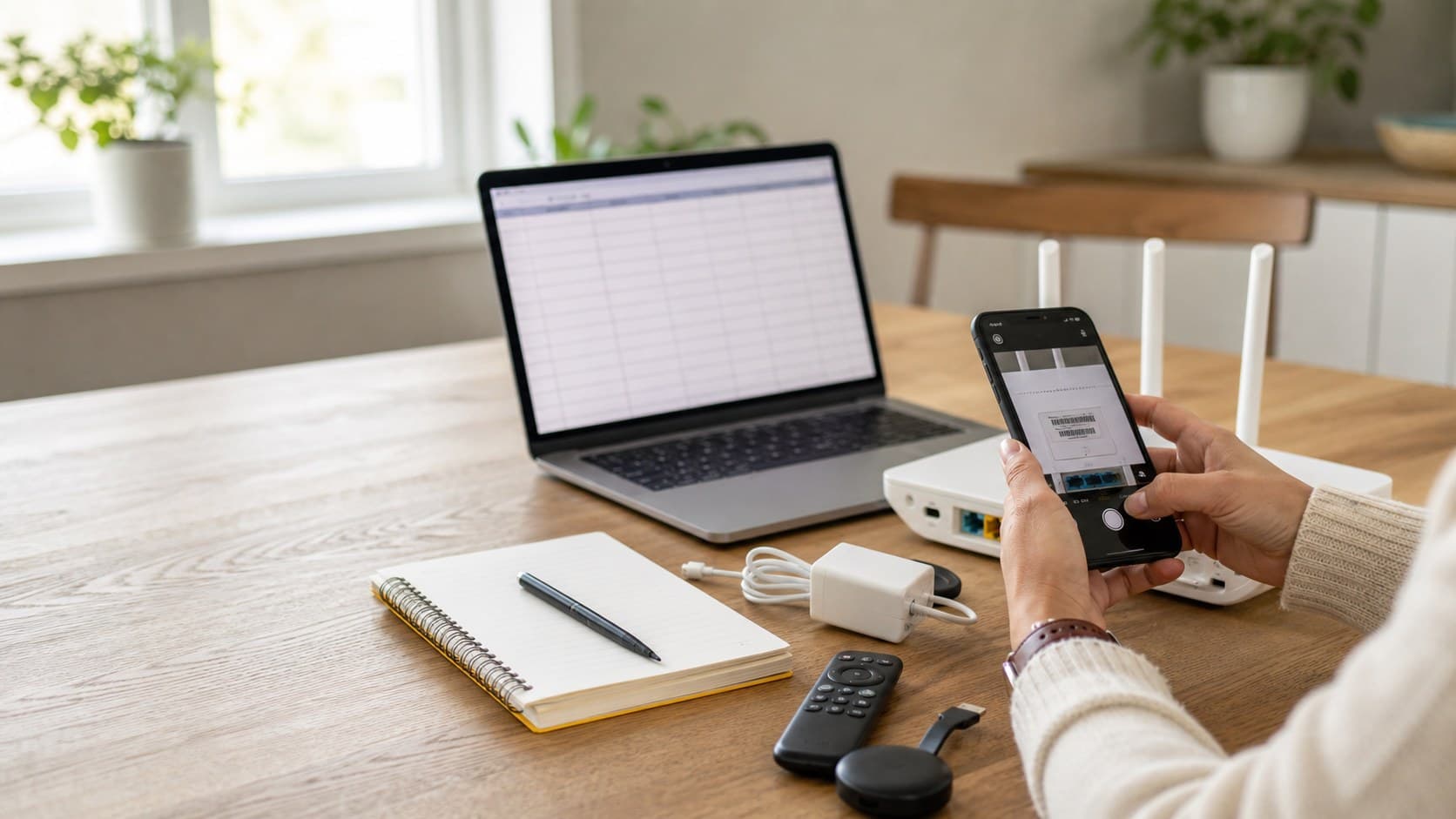
Before you unplug anything, grab four things: your phone, a notes app, one small box or pouch for loose cables, and 45 quiet minutes.
A home tech inventory sounds boring until the day your router dies, your laptop charger disappears, or a warranty claim asks for a serial number printed in tiny gray letters on the underside of a device you already packed away. The fix is simple: make a basic list of what you own, where it lives, what it belongs to, and what you would need if it stopped working.
This is not a complicated spreadsheet project. It is a practical household record. Done once, it can save you from guessing which charger came with which device, buying duplicate cables, or hunting through drawers while customer support waits on the phone.
What a Home Tech Inventory Is
A home tech inventory is a simple list of your everyday electronics and the details that help you repair, replace, sell, donate, or troubleshoot them later.
It can include:
- Laptops, tablets, phones, and e-readers
- Routers, mesh Wi-Fi nodes, modems, and smart home hubs
- Monitors, keyboards, mice, webcams, and docks
- Game consoles, controllers, streaming sticks, and remotes
- External drives, memory cards, chargers, and adapters
- Printers, scanners, speakers, headphones, and cameras
You do not have to catalog every cheap cable in the house. Start with anything that would annoy you, cost real money, or interrupt work if it went missing or stopped working.
Step 1: Pick One Place to Store the List
Use a tool you already understand. Google Sheets, Microsoft Excel, Apple Numbers, Notion, or a plain note can all work.
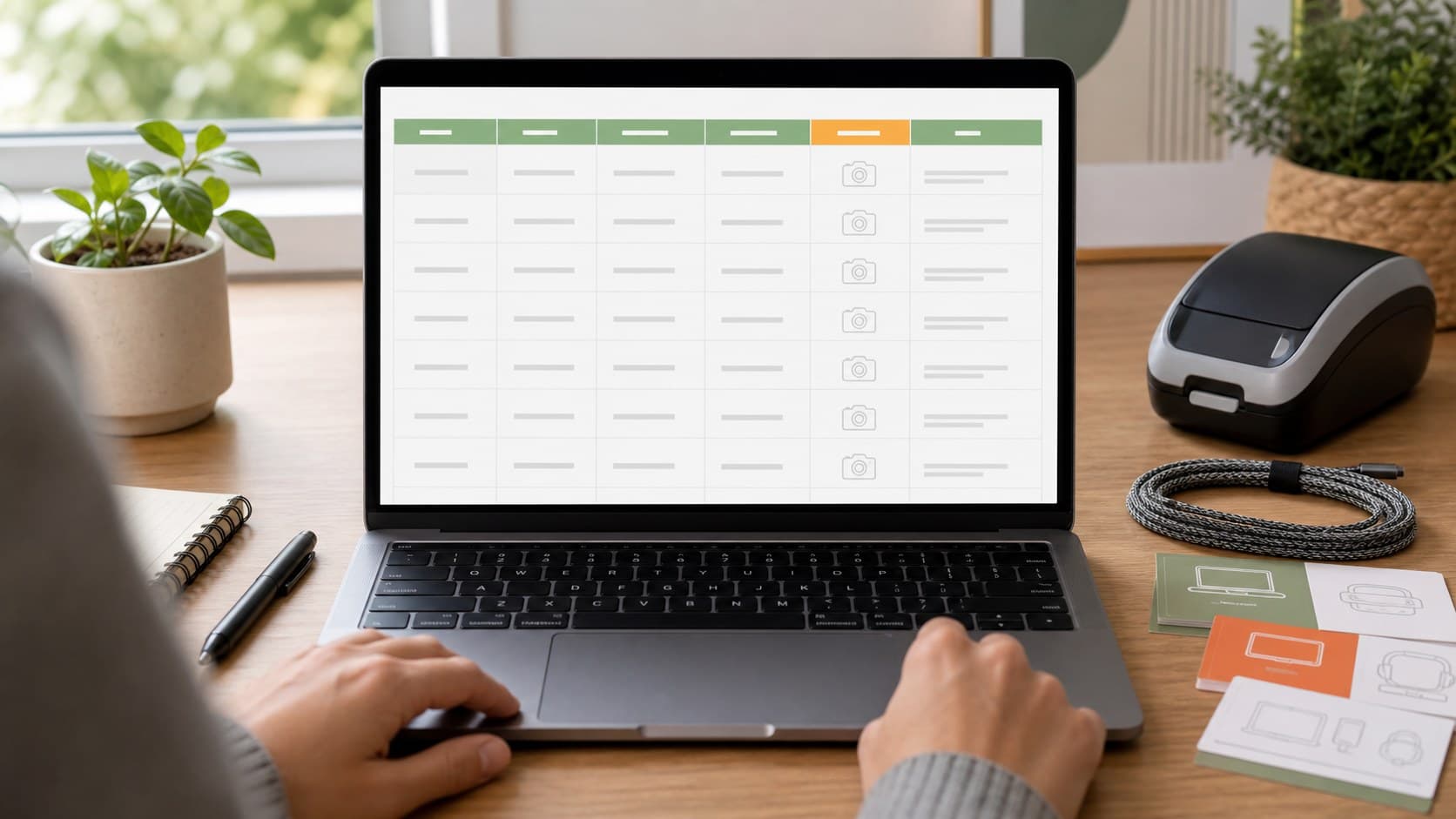
A spreadsheet is best because it is easy to sort, search, and update. Create columns for:
| Field | What to Enter |
|---|---|
| Device | Laptop, router, monitor, printer, controller |
| Location | Office desk, living room cabinet, bedroom drawer |
| Brand and model | The model name or number printed on the device |
| Serial number photo | Link to a photo or folder location |
| Purchase date | Approximate is fine if you do not know |
| Warranty end | Date or “unknown” |
| Cable or adapter | USB-C 65W charger, HDMI cable, barrel plug |
| Notes | Login app, support number, issue history, paired remote |
If you want the fastest version, use only four columns: device, location, model, and notes. You can add the rest later.
Step 2: Start With the Devices You Touch Every Week
Do not begin in the junk drawer. Begin with visible, important gear.
Walk through your home and list the devices you actually rely on. A good first pass might include your router, work laptop, monitor, printer, main phone charger, streaming device, external backup drive, and any smart home hub.
I once found a 2019 mesh Wi-Fi node still plugged in behind a printer, even though the home had been upgraded twice. It was warm, dusty, and doing nothing useful. That is exactly the kind of thing an inventory exposes.
Keep the first round short. Ten to fifteen items is enough to make the system useful.
Step 3: Photograph the Labels Before You Need Them
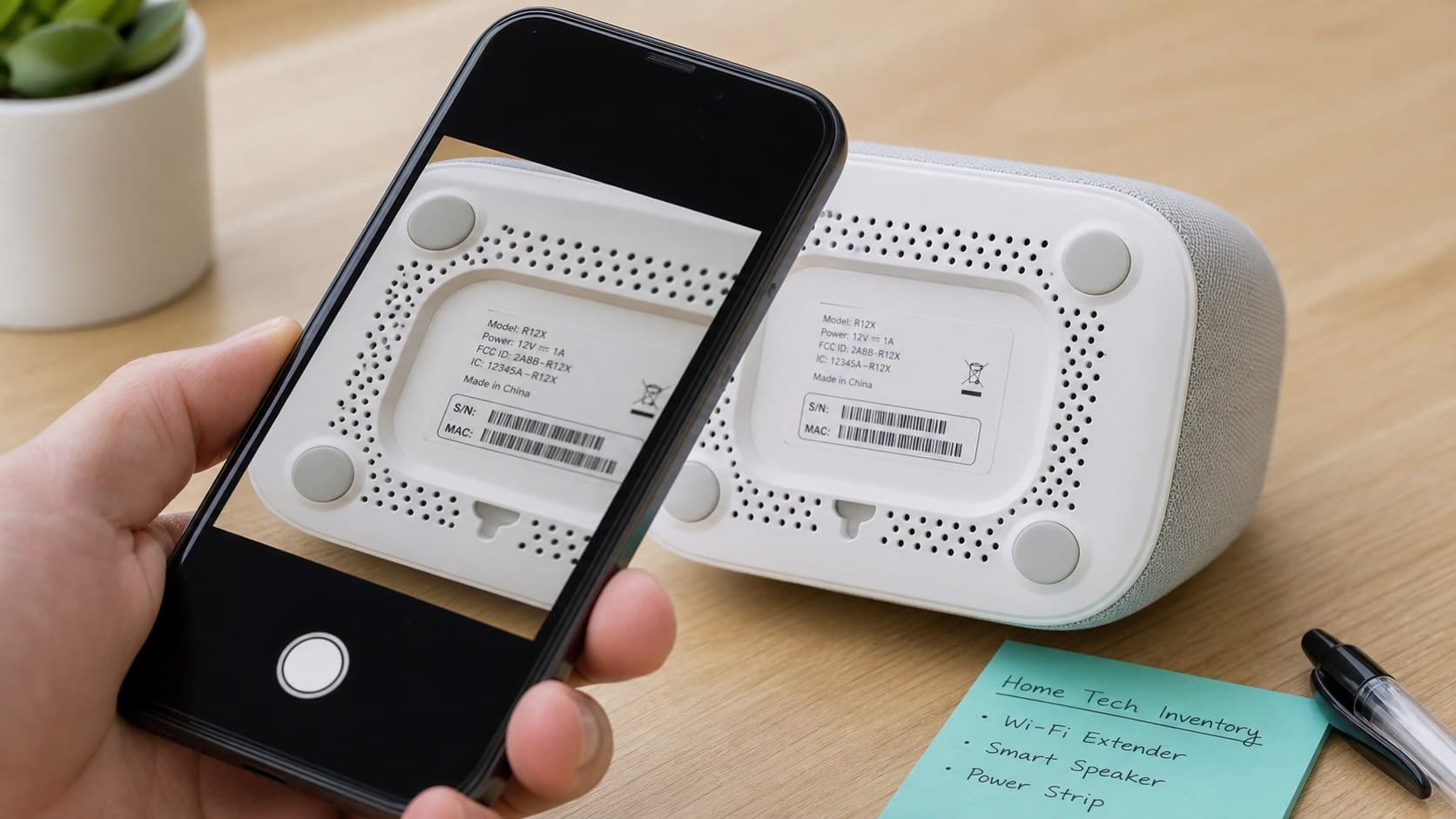
Many devices hide the important details on the bottom, behind a stand, inside a battery compartment, or on the original box. Take photos now while everything is working.
Photograph:
- Serial numbers
- Model numbers
- Service tags
- MAC addresses for routers and network gear
- Warranty stickers
- Power adapter labels
- Unusual connector shapes
For privacy, avoid saving sensitive account passwords or private network passwords in the same inventory. The goal is to record device facts, not create a security risk.
Make a folder called `Home Tech Inventory` in your preferred storage app. Inside it, create subfolders such as `Router`, `Laptop`, `Printer`, and `Cables`. Add the photo links or folder names to your spreadsheet.
Step 4: Match Chargers and Cables to Devices
This is where the inventory becomes surprisingly useful.
Many households have a drawer full of adapters that “probably belong to something.” Instead of guessing, match each important device with the charger or cable it needs.
Write down details like:
- USB-C 65W laptop charger
- HDMI cable for living room console
- Micro-USB cable for old camera
- 12V 1A router power adapter
- USB-B printer cable
- DisplayPort cable for monitor
If a cable is critical, label it with masking tape or a small tag. Write the device name, not the cable type. “Office monitor” is more useful than “DisplayPort” when you are in a hurry.
Step 5: Add Warranty and Receipt Clues
You do not need perfect records to make this helpful. Even an approximate purchase month can narrow down whether a device might still be under warranty.
Add whatever you can find:
- Purchase date
- Store or website where you bought it
- Order number location
- Warranty length
- Protection plan details
- Receipt folder name
- Return window notes
If the receipt is in email, search for the brand name plus words like “order,” “receipt,” or “invoice.” If it is a paper receipt, take a photo and save it beside the device label photos.
Keep the notes practical. “Bought around Black Friday 2024 from Best Buy” is better than leaving the field blank.
Step 6: Record Support Apps and Setup Details
Some devices depend on a companion app or setup account. You do not need to store passwords here, but you should record which app controls what.
Examples:
- Router managed in the Eero app
- Printer connected through HP Smart
- Doorbell configured in Google Home
- Headphones updated through Sony Headphones Connect
- Backup drive used with Time Machine
- Streaming remote paired to living room TV
This helps when someone else in the home needs to troubleshoot a device. It also helps future you remember why an app is still installed.
Step 7: Make a Small “Tech Exit Kit”
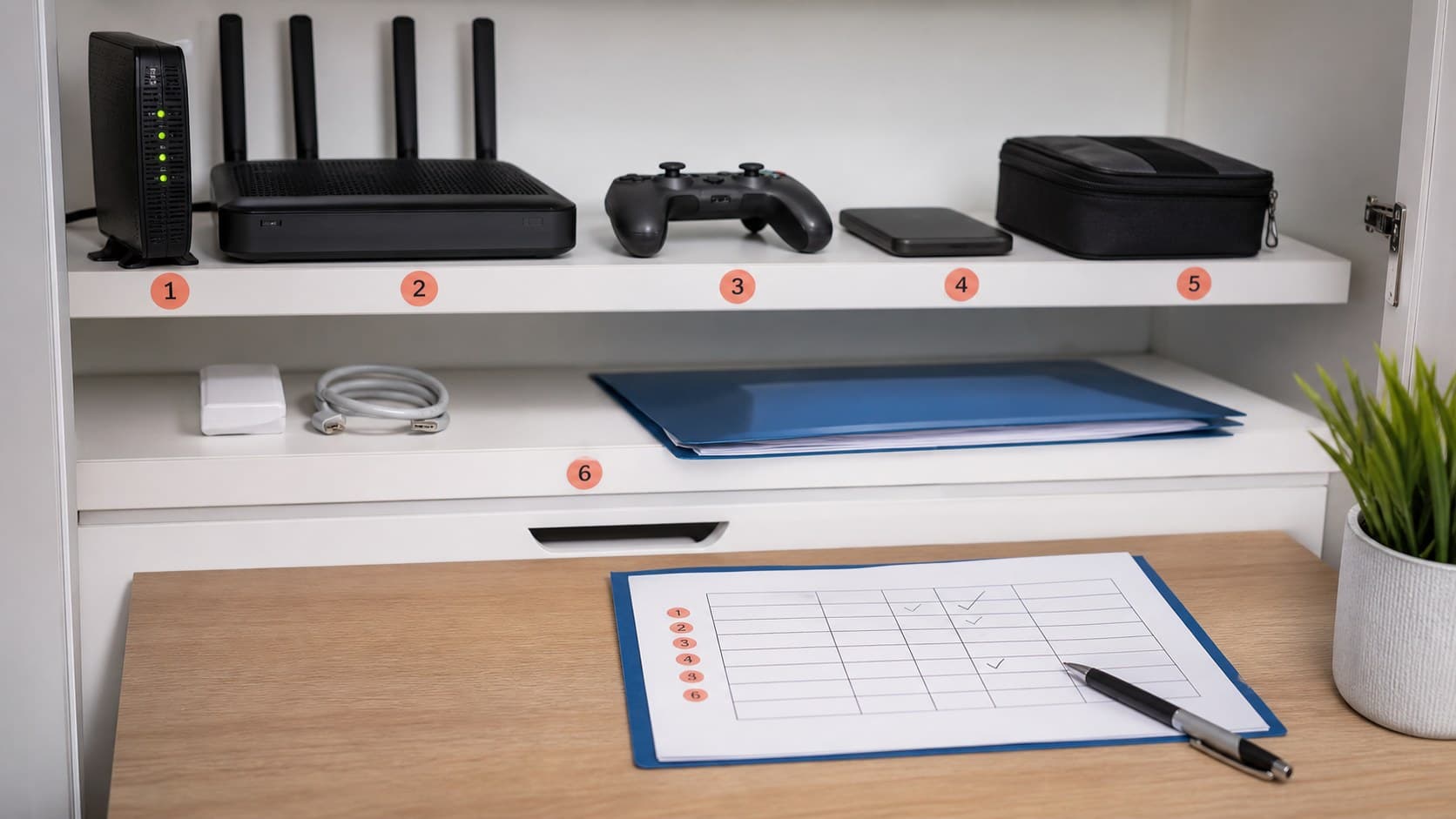
Choose one shelf, pouch, drawer, or plastic bin for loose tech items that should not float around the house.
Add:
- Spare chargers
- Rare adapters
- Device manuals worth keeping
- Extra remote controls
- Warranty cards
- SIM tool
- USB flash drive
- Label tape or sticky notes
Do not turn this into a museum of old electronics. If a cable has no known device, put it in a “check later” pile. If it still has no purpose after a month, recycle it responsibly.
Step 8: Set a 15-Minute Update Reminder
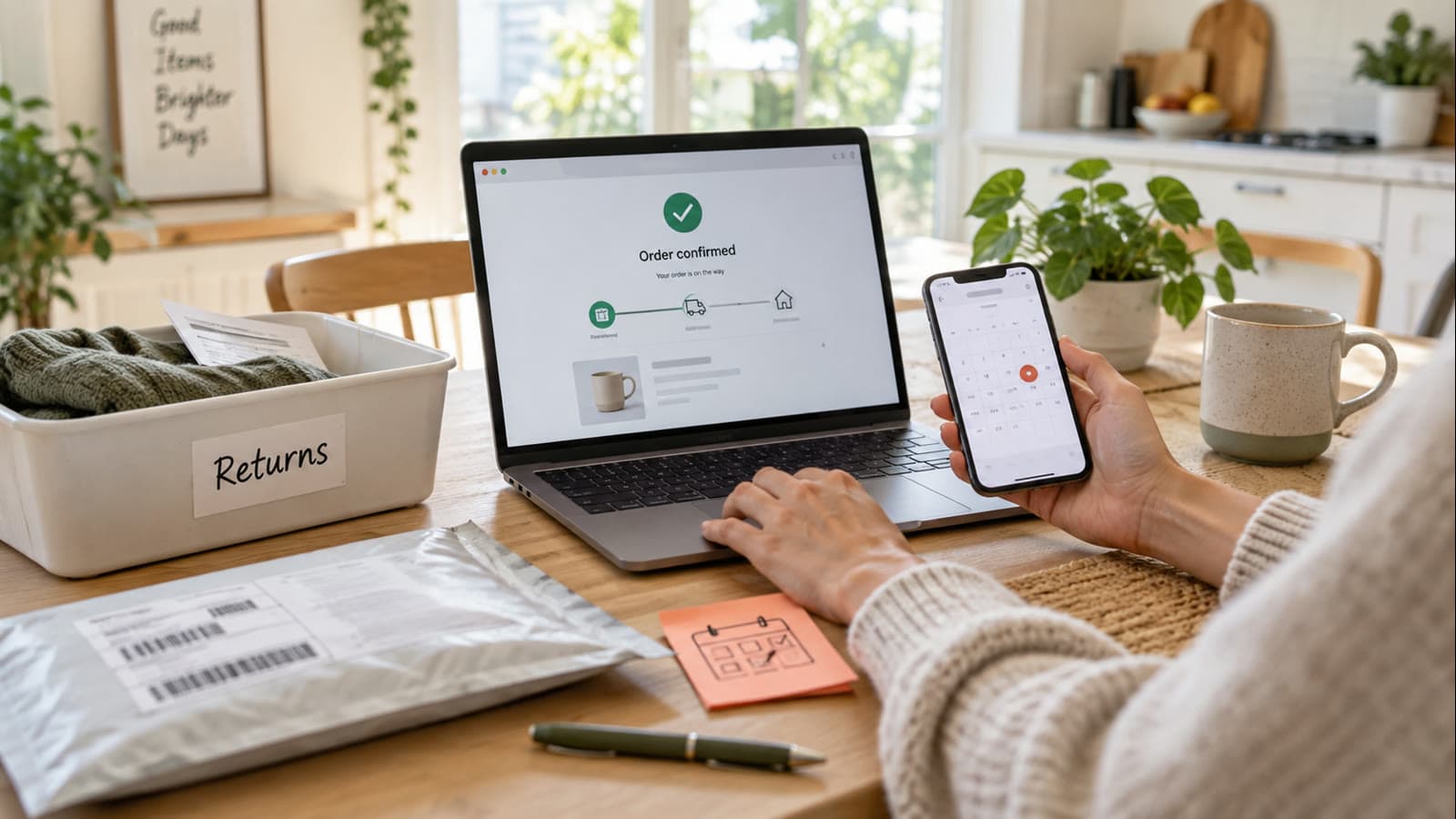
The inventory only works if it stays roughly current. Add a calendar reminder every six months called “Update home tech list.”
During that quick check:
- Add new purchases
- Remove donated or recycled items
- Update warranty notes
- Rename moved devices
- Delete duplicate cable entries
- Add new serial number photos
A twice-a-year update is enough for a normal household. If you buy or test gadgets often, make it quarterly.
Common Mistakes to Avoid
Do not store passwords in the spreadsheet. Use a password manager for that.
Do not photograph private recovery codes and leave them in a general photo folder. Treat recovery codes separately and securely.
Do not make the system too detailed on day one. If it takes three hours, you probably will not maintain it.
Do not skip cables. The device list is useful, but the cable notes are what save time when something needs to be moved, replaced, or repaired.
Do not keep broken devices “just in case” unless you have a clear reason. An inventory should reduce confusion, not document clutter forever.
A Simple 45-Minute Plan
Use this order if you want to finish today:
- Create the spreadsheet or note.
- Add your router, laptop, monitor, printer, streaming device, and backup drive.
- Photograph labels and serial numbers.
- Match each important device with its charger or cable.
- Add warranty or purchase clues.
- Put loose accessories in one labeled place.
- Set a six-month reminder.
By the end, you should know what you own, where it is, and what information you would need if something failed tomorrow. That is the quiet power of a good home tech inventory: fewer guesses, fewer duplicate purchases, and fewer frantic searches when a small device suddenly matters.
Found this useful?
Send it to someone who should read it.